
Integrate CAB with Marketing Cloud
CAB Settings - Marketing Cloud Integration
Section titled “CAB Settings - Marketing Cloud Integration”The final step of our integration is connecting the dots between Campaign Audience Builder and Marketing Cloud.
- Navigate to the Campaign Audience Builder app and access the CAB Settings.
- Scroll down to the Marketing Cloud Integration section. If you miss the Marketing Cloud Integration part, please contact us so we can enable the feature for you.
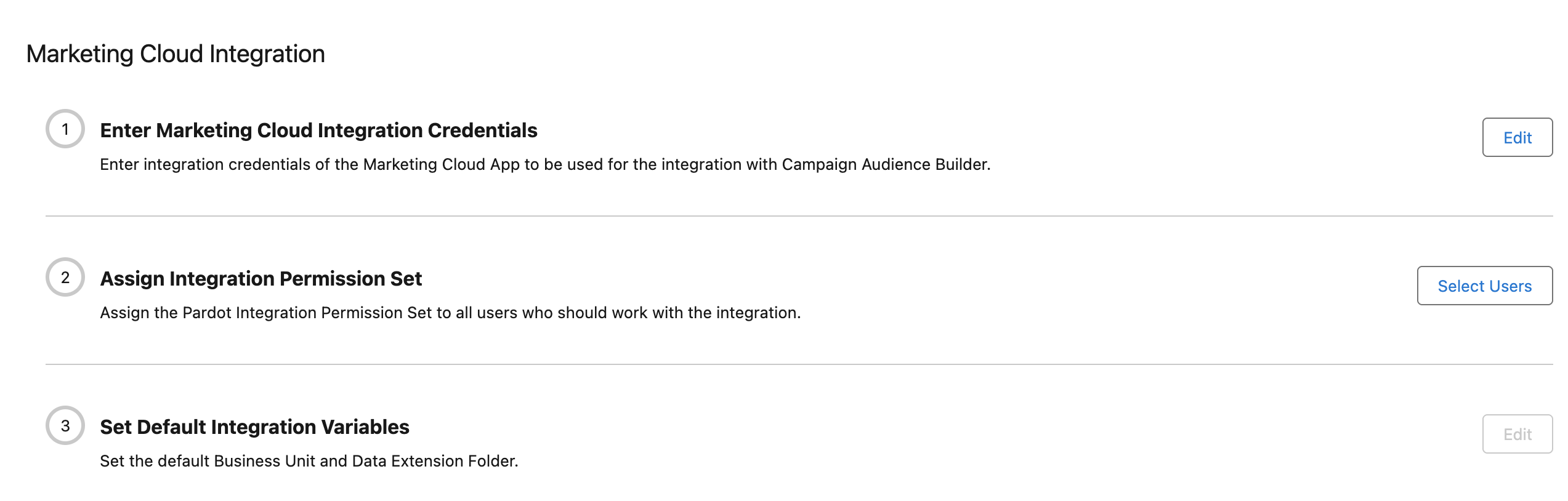
(1) Enter Marketing Cloud Integration Credentials
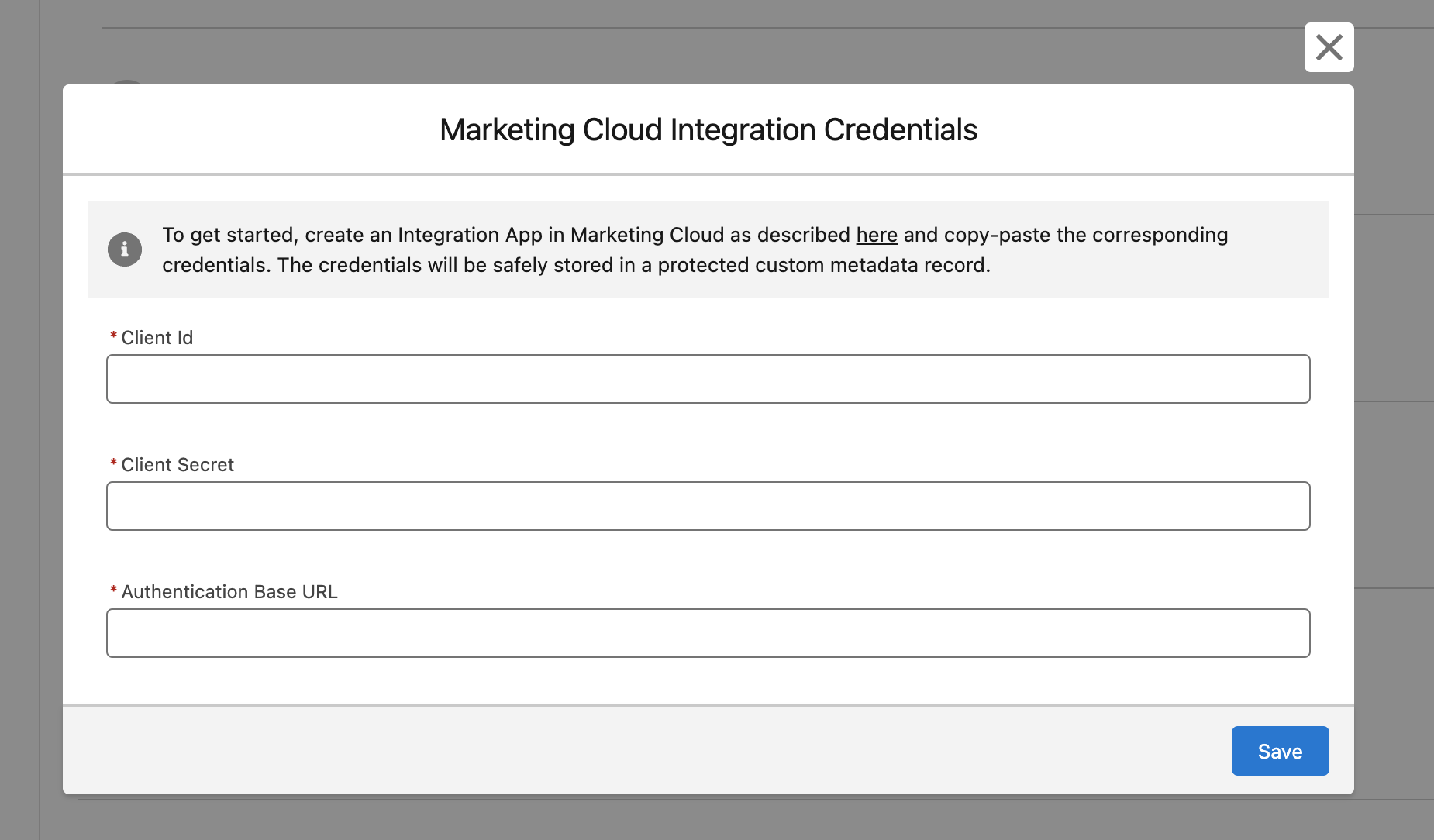
Section titled “(1) Enter Marketing Cloud Integration Credentials”- Click the Edit button.
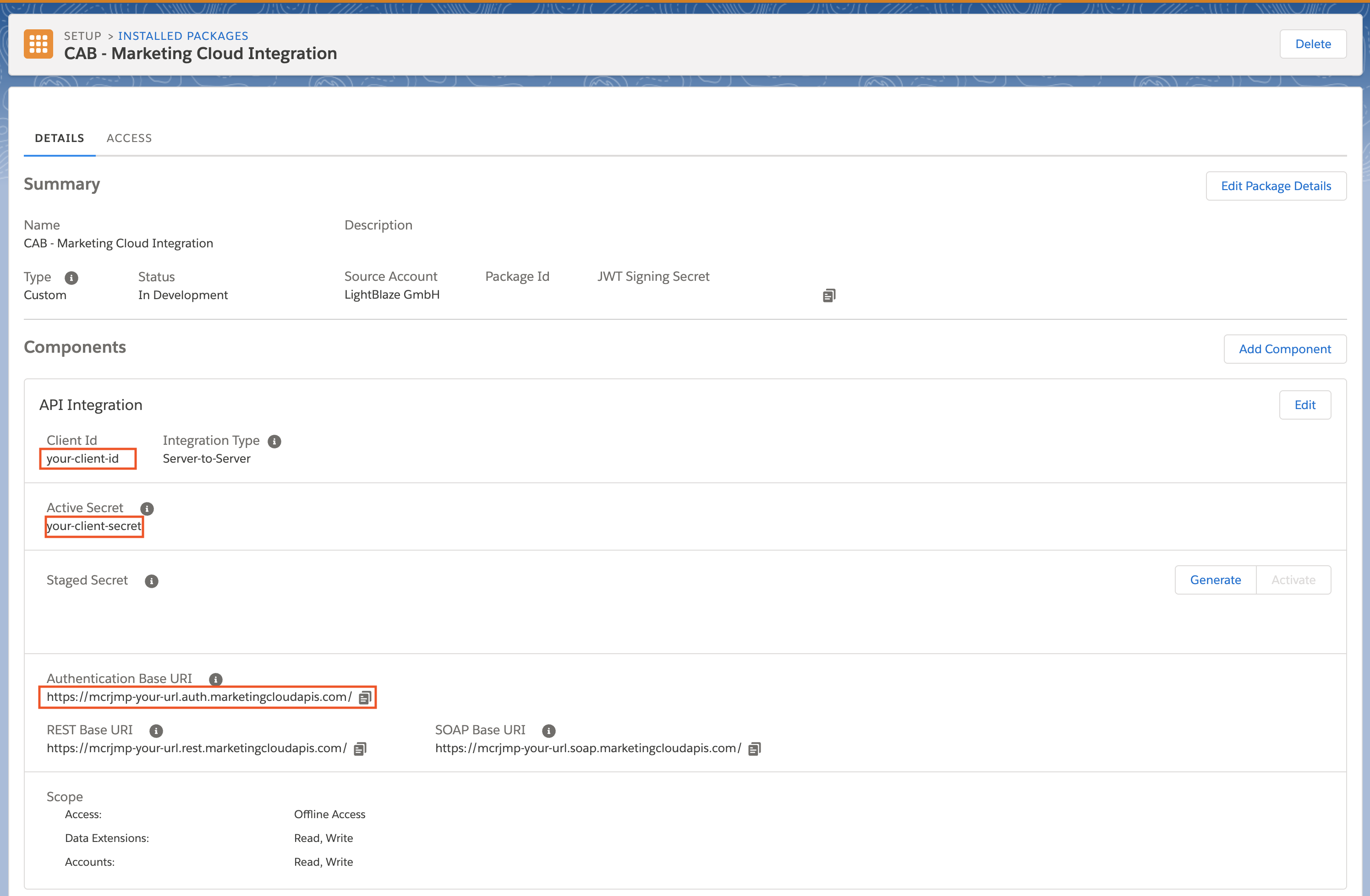
- Copy/Paste the Client ID, Client Secret and Authentication Base URL from your MC Installed Package.
- Click Save.
(2) Assign Integration Permission Set
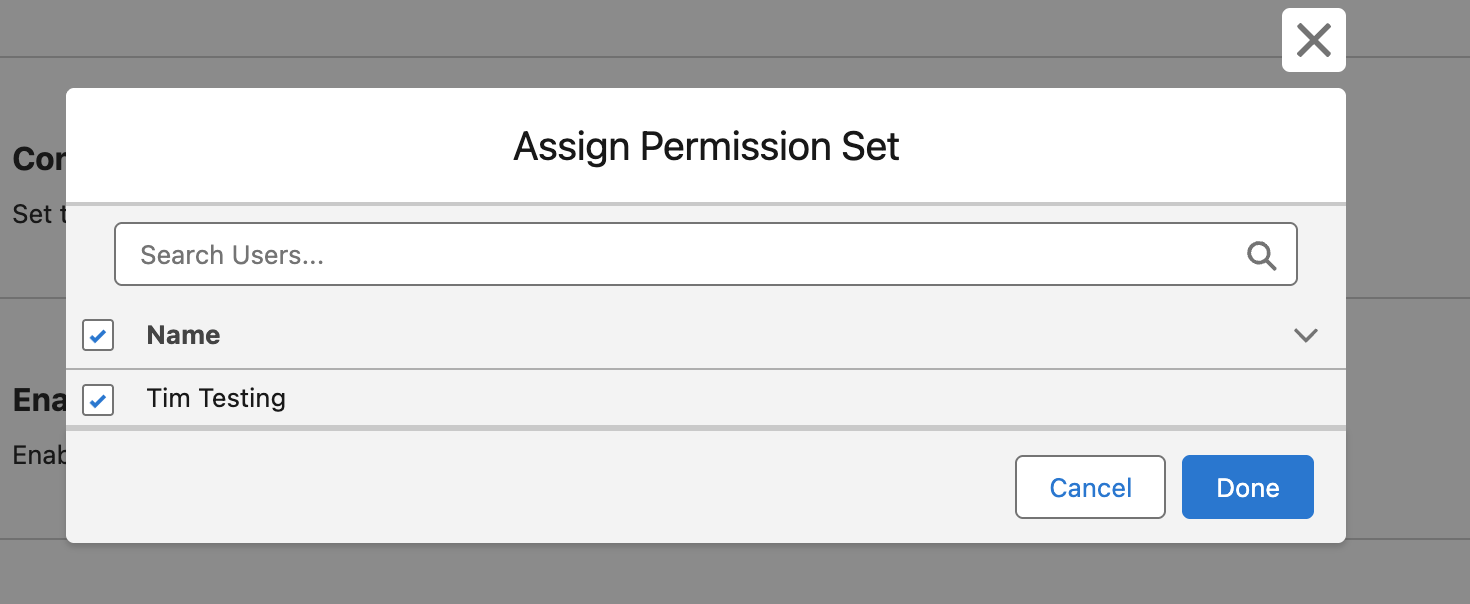
Section titled “(2) Assign Integration Permission Set”- Click Select Users.
- Select all users you want to access the Marketing Cloud Integration.
- You can only see and select users that have Campaign Audience Builder access.
- Confirm your selection by clicking Done.
(3) Set Default Integration Variables
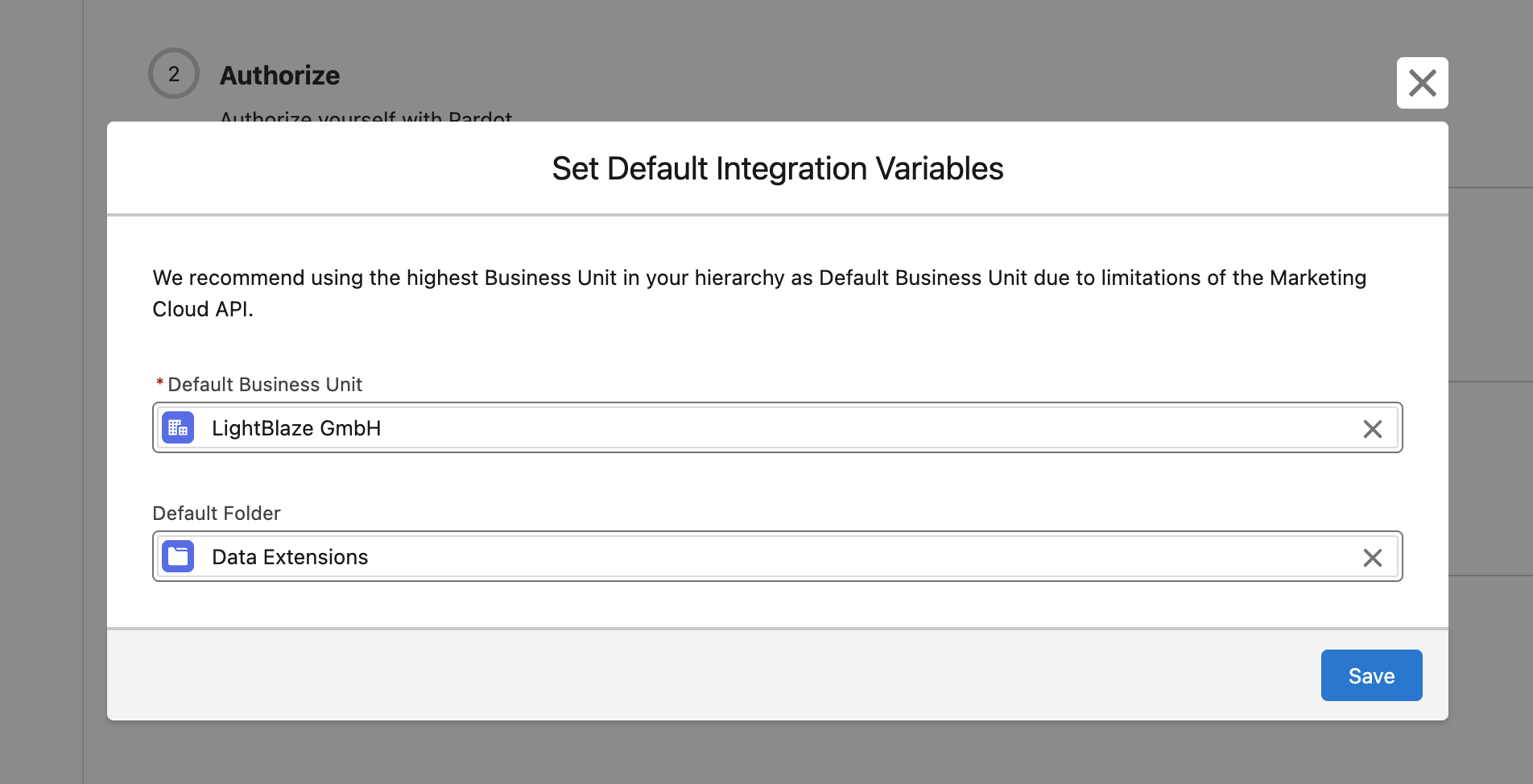
Section titled “(3) Set Default Integration Variables”- Click Edit.
- Select your preferred Default Business Unit and Default Folder.
- Our recommendation is to use your Parent BU as the Default BU. Otherwise, it may lead to issues when working across multiple BU’s due to known Marketing Cloud problems.
- These values will be prefilled if you create a new Data Extension. However, you can always select a different BU/Folder when creating new Data Extensions.
- Click Save to confirm your setup.
Congratulations, your Campaign Audience Builder - Marketing Cloud Integration Setup is completed.
You can now move on and transfer your first audiences into the Marketing Cloud!