

Choose the right filter operator
Make each condition say exactly what you intend
After you choose a Field, CAB limits the Operator list to choices supported by that Salesforce field type.
Operator reference
Section titled “Operator reference”| Field kind | Operators shown in CAB | Notes |
|---|---|---|
| Text, Email, Phone, URL, Text Area | Equals, Does Not Equal, Is Empty, Starts With, Ends With, Contains, Does Not Contain | Text comparisons use the entered string. A condition can also hold a list of values. |
| Number, integer, currency | Equals, Does Not Equal, Is Empty, Greater Than, Less Than, Less Than or Equal, Greater Than or Equal, Between | Between accepts a lower and upper bound. |
| Percent | The comparison operators above, except Between | Enter the value as CAB presents it for the Salesforce percent field. |
| Date and Date/Time | The number-style comparison operators, including Between | Switch between a calendar value and a relative date. |
| Time | Equality, emptiness, and greater/less comparisons | Between is not offered for Time fields. |
| Picklist | Text-style operators | Equals and Does Not Equal use picklist choices; text-style matching is also available. |
| Multi-Select Picklist | Equals, Does Not Equal, Is Empty, Includes, Excludes | Use Includes/Excludes for individual stored selections. |
| Lookup, ID | Equals, Does Not Equal, Is Empty | Search for one or more Salesforce records instead of typing raw IDs. |
| Checkbox | Equals, Does Not Equal | The value is true or false. |
| Location | Is Within, Is Not Within | Configure a radius and point. See Filter by distance from a location. |
With Is Empty, set Value to true to match blank/null values or false to match populated values. “Empty” is a null check; it is not the same as searching a text field for a space.
For Multi-Select Picklist fields, Includes and Excludes remain distinct from Equals and Does Not Equal. CAB preserves that distinction when Cabby authors the condition, when the condition is stored in a Filter Library module, and when a configured copy is added to an audience.
For Picklist and Lookup fields, selecting several values uses OR with Equals and AND with Does Not Equal. Each selected value appears as a badge below the field; remove one with the X on its badge. Between includes both From and To; the To value must be larger than the From value. For a Date/Time field, comparisons use the calendar-date portion rather than the time of day.
Match a list of text values
Section titled “Match a list of text values”One text condition can hold a list of values, for example a list of postal codes. Lists work on Text, Email, Phone, URL, and Text Area fields with Equals, Does Not Equal, Contains, Does Not Contain, Starts With, and Ends With.
- Enter or paste the values in Value, separated by commas, semicolons, or tabs, for example
N22, N23, CH1, CH6. - Select Split into 4 values below the field. Each value becomes a chip.
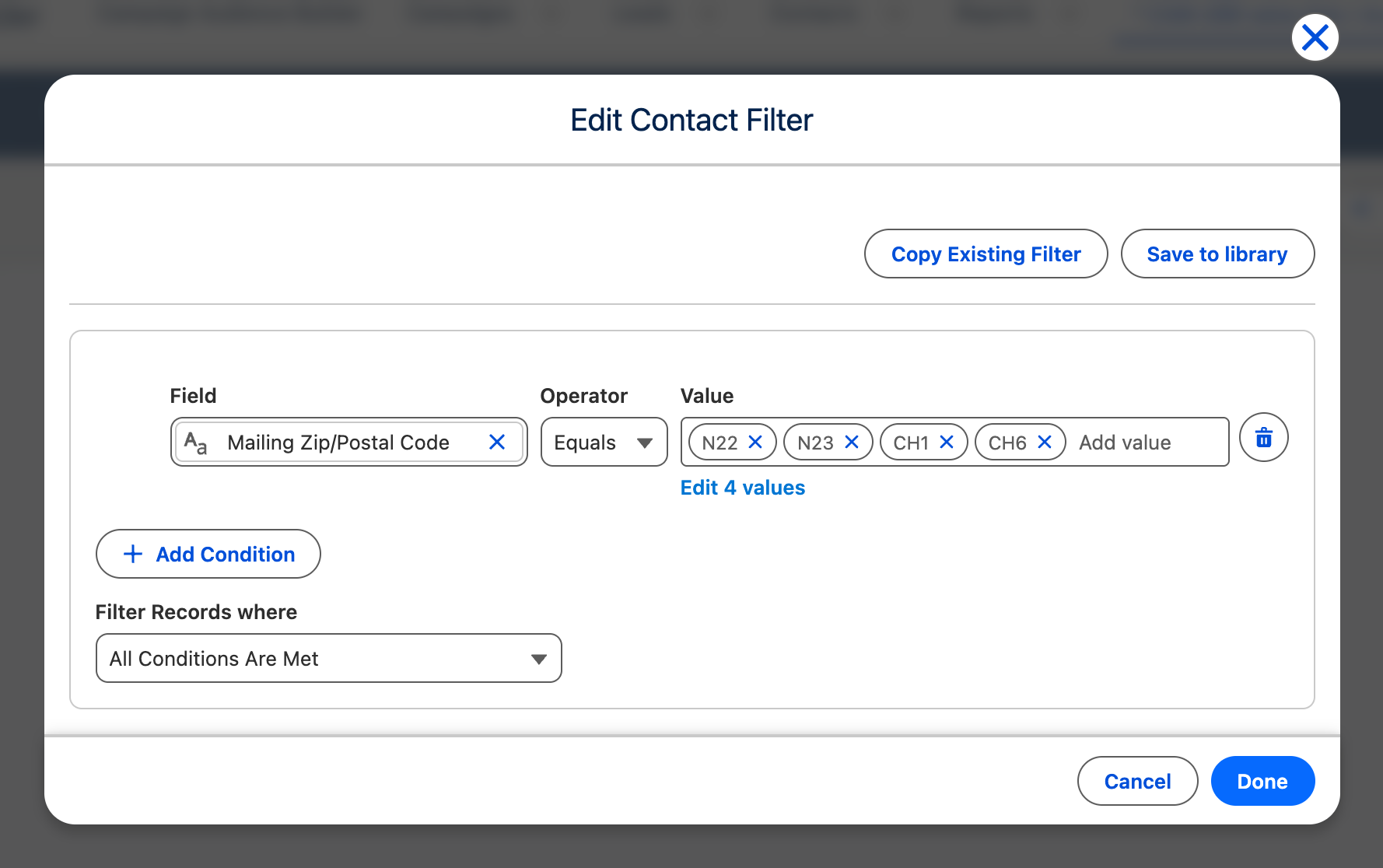
CAB never splits a value on its own: Smith, John stays one value until you select the split link. The split removes spaces around each value, skips empty entries, and keeps values that differ only in upper and lower case once, because the comparison ignores case.
A list matches records that have any of its values. With Does Not Equal and Does Not Contain, it matches records that have none of them. In custom filter logic, the list is one condition.
To change a list:
- Type in Add value. A comma, a semicolon, or Enter turns the typed text into a chip. A pasted list adds one chip per value, also when the values are on separate lines, as in a column copied from a spreadsheet.
- Remove a value with the X on its chip.
- Select Edit 4 values, or +2 more when the field shows only the first ten values, to open Edit values. It shows one value per line. A comma inside a line is part of the value, so add a value such as
Smith, Johnthere. Combine into one value turns the list back into one text value.
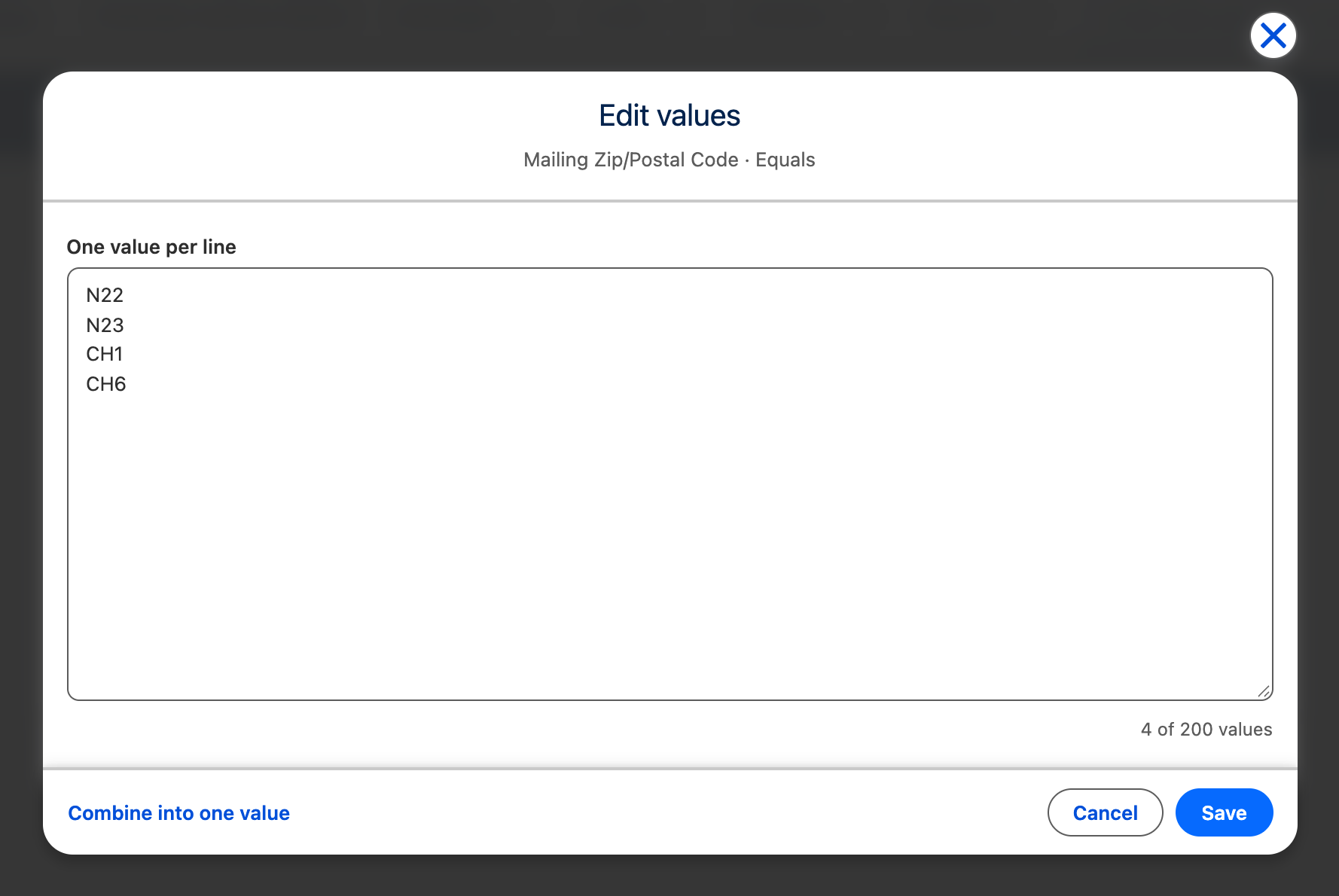
A list holds up to 200 values. If a list is too long for the query of one condition, saving shows This list is too long for one filter. Remove some values.
Use relative dates
Section titled “Use relative dates”For a Date or Date/Time condition, select Use relative date. The field changes to Enter a relative date…. Supported patterns include:
YESTERDAY,TODAY, orTOMORROW;LAST WEEK,THIS MONTH, orNEXT FISCAL QUARTER;LAST 30 DAYSorNEXT 2 WEEKS;90 DAYS AGO.
Relative input is case-insensitive. Between uses two calendar-date inputs rather than relative expressions. Select Use calendar date to return to a fixed single value.
Combine several conditions
Section titled “Combine several conditions”Under Filter Records where, choose All Conditions Are Met, Any Condition Is Met, or Custom Logic Is Met. Custom logic accepts condition numbers, AND, OR, NOT, and parentheses without regard to case. Reference every condition, group mixed AND/OR, and parenthesize negation—for example, (NOT 1) or (NOT (1 OR 2)).
Connected object branches have their own Related Object Filter Logic; see Combine related-object filters with custom logic.