Build and activate audiences with Cabby
Describe the audience you need
Cabby can build and refine an audience, start from campaign-aware suggestions, prepare an action for the current results, and configure a basic schedule. It presents the configuration and any activation for review before the consequential step.
Build or refine an audience
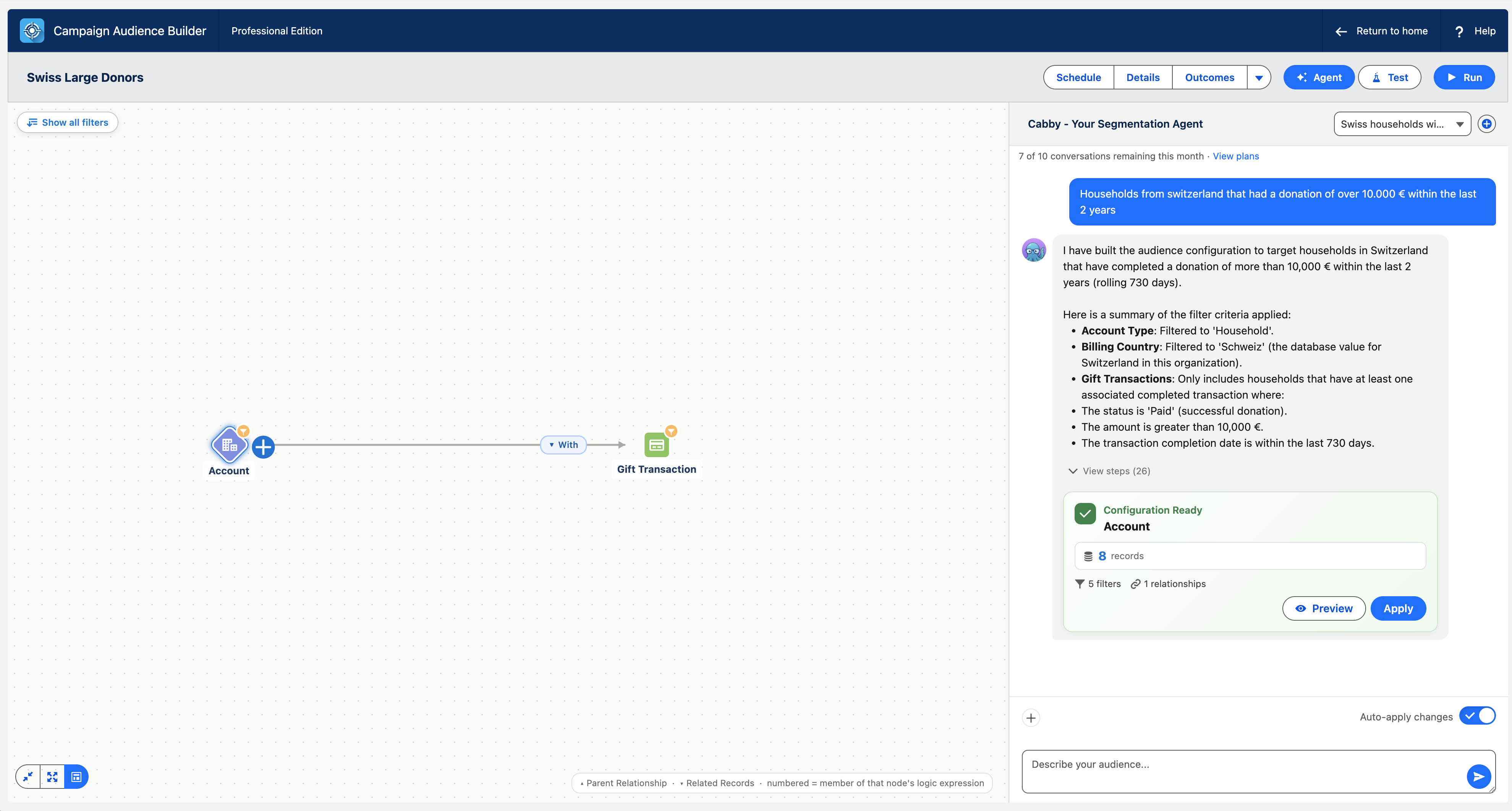
Section titled “Build or refine an audience”- Open an audience and select Agent. The panel is titled Cabby - Your Segmentation Agent.
- Enter the goal in Describe your audience…. Include the business meaning, time period, exclusions, and any object or field terminology that matters.
- Follow the live progress. Use View steps when you want to inspect Cabby’s work, or Cancel to stop the current turn.
- Review the Configuration Ready card. It summarizes the proposed records, filters, and relationships and tests the query when possible. A partial test is marked tested on … of ….
- Select Preview to inspect the result before changing the audience. Select Apply when the configuration is right.
Decide when changes apply
Section titled “Decide when changes apply”Auto-apply changes applies and saves a completed Cabby configuration as soon as it is ready. It is on by default for a new or empty audience and off by default when the audience already contains configuration. The choice is stored with the conversation.
Turn it off when a builder should inspect every Configuration Ready card and deliberately choose Preview or Apply.
Fixed Filter Library copies follow the same review behavior as the rest of the proposed configuration. Cabby can propose a fixed module—including a fixed aggregate module—as a one-time Copy; review it on Configuration Ready, then use Preview or Apply. When Auto-apply changes is on, a fixed copy can be applied with the completed configuration and does not open a separate parameter window.
New synced library references remain explicit even when auto-apply is on. Toggle the proposed template chips under Apply suggested filter library templates?, then select Sync & apply or Apply without sync. See Reuse and govern filters with the Filter Library.
Parameterized library modules are also explicit. Cabby can find a module—including one with a parameterized aggregate comparison—and propose a one-time Configure & copy, but it never proposes the module as Synced or recreates its conditions, relationship path, or calculation. Values you supplied explicitly can be prefilled; unresolved or missing values remain for you. CAB opens its native configuration view so you can review every required value and select Copy to audience. Canceling that view skips the module without applying it and leaves the rest of Cabby’s proposal available.
A count is unavailable for a parameterized proposal. Cabby can test a fixed aggregate proposal against the complete saved relationship path, source conditions, and calculation. Cabby never makes a library entry a default, changes its designation, or detaches an existing reference.
Start from a campaign
Section titled “Start from a campaign”On a Salesforce Campaign record that includes the CAB Campaign Suite:
- Select Create with Cabby.
- Choose Contact Audience or Lead Audience. Account Audience is also available when Accounts as Campaign Members is enabled.
- Choose Get Cabby’s suggestions or Start from scratch.
- For suggestions, optionally add context in Add more details about your target audience…, then select Generate Suggestions. Cabby presents three grounded ideas under Suggested audience segments. Select one, or choose I have my own idea.
- Refine the configuration in chat. In this campaign flow, the final action is Create Audience, not Apply. Complete Enter a name for the new audience when prompted; the input placeholder is Audience name.
Cabby grounds these ideas in the Campaign’s standard context, including Name, Type, Description, dates, Status, Parent Campaign name, and current Contact and Lead counts. An administrator can allow additional custom Campaign fields; the Cabby setup guide explains the privacy boundary.
Add a saved audience as read-only context
Section titled “Add a saved audience as read-only context”Open Add context to chat, choose Audience, and select a saved audience. Cabby can compare against that audience or use its design as a starting point.
The reference is read-only. Cabby cannot edit, save, or replace the referenced audience, and adding it does not silently copy its filters into the current audience. Ask Cabby to build a new configuration like it when that is what you want.
Prepare a one-time action
Section titled “Prepare a one-time action”Ask Cabby to add the current results to a Salesforce Campaign or Marketing Cloud Data Extension, or to run a Final Action. Cabby prepares a Manual Action card; it does not execute the action from the prompt alone.
- Review the action type—Add to Campaign, Add to Data Extension, or Run Final Action—and its Target.
- Check Default field values, Column mappings, or Inputs as applicable. Mapping and value rows can be edited in the card before launch.
- Make sure the audience is saved and has a current, non-empty result. Cabby shows Run Audience when results are missing or stale; confirmation becomes available after the run finishes.
- Select Confirm Action. Only this confirmation starts the action.
- Follow Action results. Larger work can continue in the background and show its addition log or batch job.
Ask Cabby for a basic schedule
Section titled “Ask Cabby for a basic schedule”Cabby can prepare a Recurring or One-Time schedule for the current audience. Recurring cadence choices are every 60 minutes or every 6, 12, or 24 hours; 15- and 30-minute choices depend on the organization scheduler’s cadence. Cabby can add a Campaign, Data Extension, or Final Action target and can use an existing schedule as the starting point.
- Describe the cadence, Days, Execution Time, Start, optional End, and requested Actions.
- Review the read-only Schedule card. Ask Cabby for another version if anything is wrong.
- Select Confirm Schedule to create or update it. A prompt by itself never activates the schedule.
If you ask Cabby to remove a schedule, confirm carefully: unscheduling removes the schedule and all of its scheduled actions.
Manage conversations and limits
Section titled “Manage conversations and limits”- Use New conversation when the goal changes materially. Conversation history is scoped to the audience version, Campaign, or Cabby surface from which it was started.
- A monthly allowance counts new conversations, not individual messages. CAB shows … of … conversations remaining this month, Unlimited conversations, or You have used all agent conversations for this month. Conversations reset at the beginning of each month.
- After the monthly allowance is exhausted, an already-open conversation remains usable, but you cannot start another one until the allowance resets. Use View plans when it is shown.
- The monthly conversation allowance is separate from the organization’s daily processing budget. If CAB says Your organization has reached its daily agent budget. Please try again tomorrow., retry after the daily reset or contact your administrator.
- Reloading the page does not abandon an in-progress turn; Cabby reconnects to it. Use Cancel when you intentionally want to stop it.