

Split audience results across campaigns
Allocate one audience without duplicates
Use Split to distribute results across multiple Salesforce campaigns. You can divide everything by percentage, or reserve exact-count cells first and allocate the remainder through at least one percentage row.
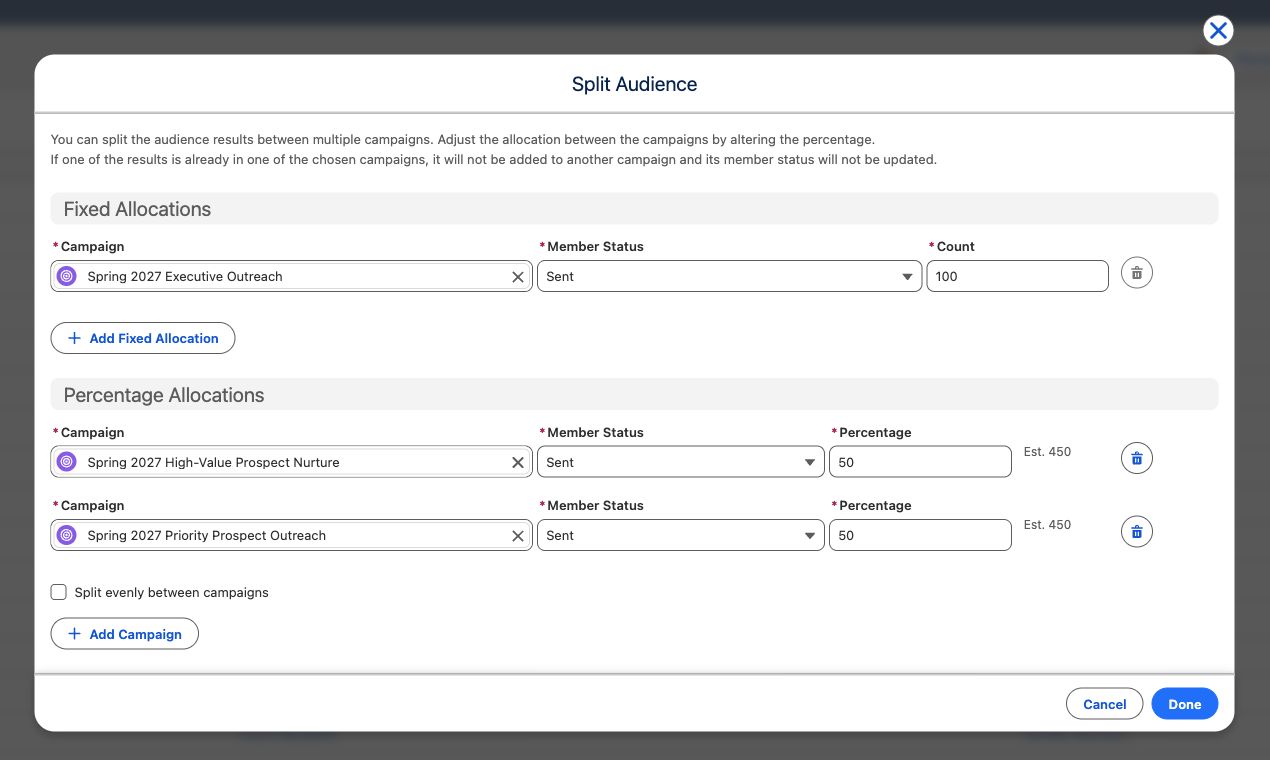
Build the split
Section titled “Build the split”- Run the audience, open the results action menu, and select Split.
- Under Fixed Allocations, select Add Fixed Allocation for each campaign that needs an exact number. Choose the campaign, Member Status, and Count.
- Under Percentage Allocations, choose the remaining campaigns, their member statuses, and a Percentage. Select Split evenly between campaigns when appropriate.
- Check the Est. … counts and select Done.
CAB fills fixed allocations first. It then distributes the records that remain across the percentage allocations. Percentage rows must total exactly 100%; CAB uses the percentages against the post-fixed remainder.
Example calculation
Section titled “Example calculation”Consider a run with 1,000 eligible results, one fixed allocation, and two 50% percentage allocations:
- CAB reserves the Fixed Allocations first. “Executive Outreach” has a Count of 100, so it receives exactly 100 records.
- CAB calculates the remainder: 1,000 − 100 = 900 records.
- CAB applies each percentage to that remainder. “Campaign A” at 50% receives 450 records, and “Campaign B” at 50% receives another 450.
| Allocation | Type | Setting | Records |
|---|---|---|---|
| Executive Outreach | Fixed | Count = 100 | 100 |
| Campaign A | Percentage | 50% of 900 | 450 |
| Campaign B | Percentage | 50% of 900 | 450 |
Notice that the 50% is applied to the 900 remaining records, not to the full 1,000. Every remaining record is assigned to a percentage allocation.
Choose the right allocation style
Section titled “Choose the right allocation style”| Goal | Configuration |
|---|---|
| Give test cells an exact sample size | Add exact Fixed Allocations, plus at least one Percentage Allocation for the remainder. |
| Divide everything proportionally | Use only Percentage Allocations. |
| Reserve test cells, then divide the rest | Combine fixed and percentage allocations. |
Large splits run in the background. CAB shows a notification when the work finishes, and the allocation details are available in run history.
This split divides the results of one run. To divide the new members of a scheduled audience on every run, see Split a schedule’s new members between campaigns.