

Create a library entry
Save a filter once so every builder can use it
A library entry holds conditions on one object. It can also filter related objects, and it can calculate over related records. You can start from an empty entry, or save a filter that already works in an audience.
Create an entry from scratch
Section titled “Create an entry from scratch”- Open the CAB Filter Library tab and select New Entry.
- On Details, enter a Name and a Description, and choose the Object. Builders see the name and the description when they choose an entry, so say what the entry selects. After you save the entry, you cannot change its object.
- Select Next. On Filters & Options, add the conditions for the object with Add Condition. Under Filter Records where, choose how the conditions combine.
- Optionally filter related objects or add a calculation. See Filter related objects and Calculate over related records.
- Select Save.
While you edit a fixed entry, CAB shows how many records match, for example 2,078 matching records. After you save, the same number shows under Records in the library list.
Filter related objects
Section titled “Filter related objects”An entry can also filter by related records. For example, “Active households” keeps only Accounts that have a paid Gift Transaction in the last 12 months.
- Under Relationship filters, select Add related object to Account. The button names the object of your entry.
- Choose the related object and the relationship. For a related object, choose “with” (the record must have a matching related record) or “without” (it must not).
- Add conditions to the related object.
- To go one level deeper, select Add related object to … on the related object.
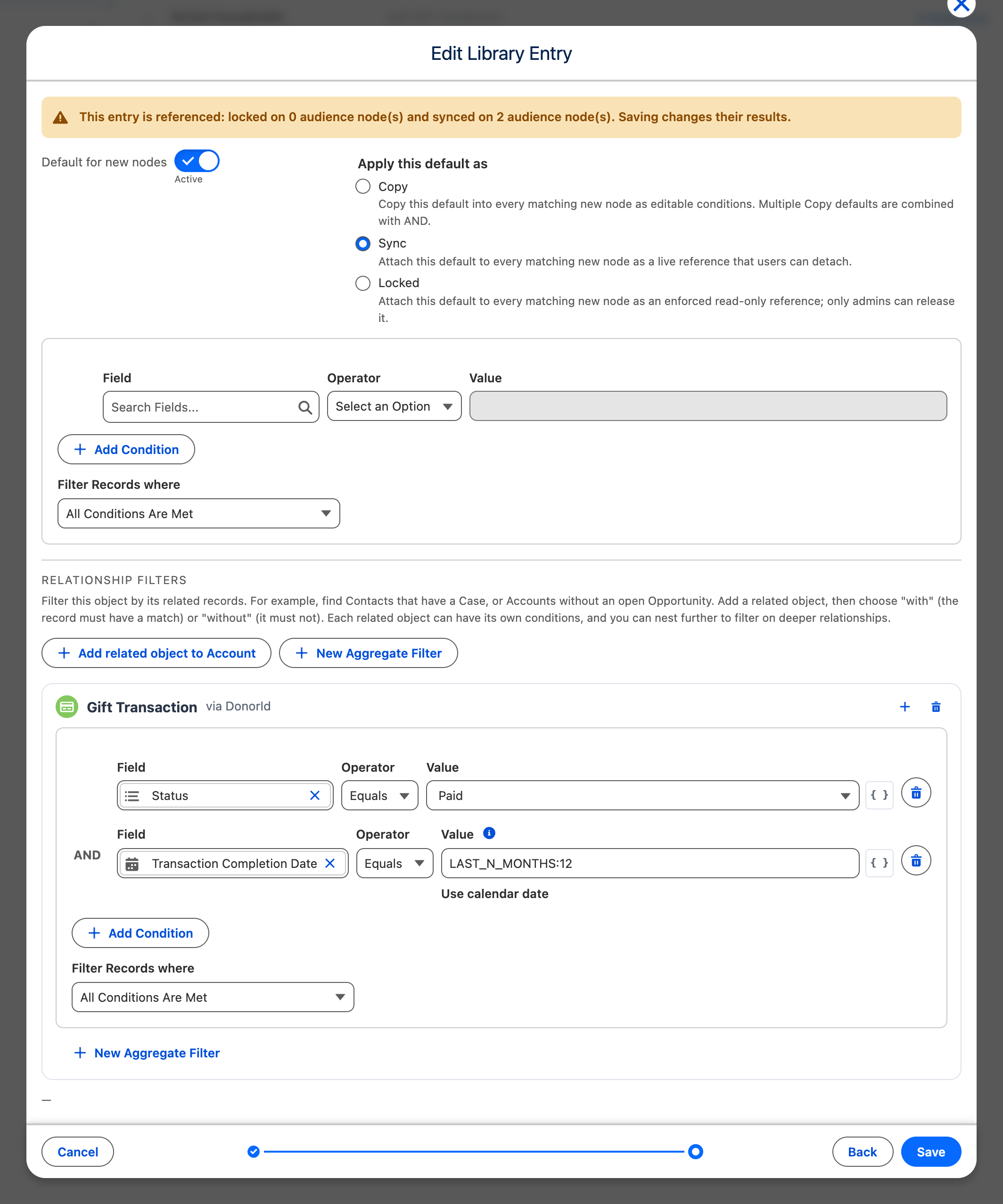
The list marks such an entry Chain. A chain can have up to 25 objects and up to 5 levels.
Calculate over related records
Section titled “Calculate over related records”An aggregate entry keeps records by a calculation over their related records, for example households whose paid gifts add up to at least an amount.
- Under Relationship filters, select New Aggregate Filter.
- Choose the related object to calculate over. You can go down more than one level.
- Optionally add conditions that decide which related records count, for example only paid gifts.
- Under Define Aggregate Filter, choose the Aggregate Function, the Field when the function needs one, the Operator and the Value.
The object of the entry can stay without conditions when the calculation alone selects the right records. The list marks such an entry Aggregate, and the record count includes the calculation.
Save a filter from an audience
Section titled “Save a filter from an audience”When a filter already works in an audience, save it to the library from there.
- On the audience canvas, double-click the object and select Save to library in the filter editor.
- Choose This node only, or This node and everything below it to include the related objects.
- Enter the Entry name and save.
To save a calculation over related records, start from the object where the calculation begins and include everything below it.
When the filter is already in the library, the button reads In library. Its menu lists the entries under Saved as. Select an entry to open it in the library in a new tab, or select Save another copy.
Let Cabby draft an entry
Section titled “Let Cabby draft an entry”On Filters & Options, select Cabby and describe the filter in Describe the filter you want…. Cabby can add conditions, related objects and calculations, and it can make values configurable. Its changes go into your draft. Undo and Redo in the dialog header step through its changes and your own edits in one order. Nothing is saved until you select Save.
Duplicate an entry
Section titled “Duplicate an entry”To start from an existing entry, select the duplicate icon in its row. Duplicate Library Entry opens with a copy of the conditions and the name followed by “(Copy)”. The copy is never a default, whatever the original is.