
Set up an outcome
Say what success means after people are added, and start measuring it
An outcome is what you want people to do after you add them, and how many days they have: “a gift within 30 days”, “an opportunity won within 90 days”, “marked as responded within 60 days”. Set it up once, then measure it on every campaign add, data extension add or final action where it matters. The words used here are explained in Words used on these pages.
Creating, editing and deleting outcomes needs the Manage outcomes permission. Everyone else can pick existing outcomes where they add people. Without the permission, the picker names the people who set up outcomes, for example Outcomes are set up by Dana Whitfield.
Start from a goal
Section titled “Start from a goal”New outcome walks you through three steps: Goal, Details and Start measuring.
- On the CAB Outcomes tab, select New outcome.
- Under What should happen after people are added to the campaign?, pick a goal and select Next. At the end of the list, Start from an existing outcome (once you have outcomes) and Custom outcome let you begin another way; see Start from an existing outcome and Set up a custom outcome.
- On Details, check the Name and Description. Folder is optional. It is filled in with the folder you had open on the CAB Outcomes tab; to change it, pick another folder or No folder. Set the number of days, and fill in what the goal asks for, such as a minimum amount. Under What this counts, the rule appears in one sentence, with the days on which results update.
- On Start measuring, pick the scheduled actions that should measure it (see Pick where it is measured). Then select Save and start measuring, or Skip for now to save it without measuring anything yet.
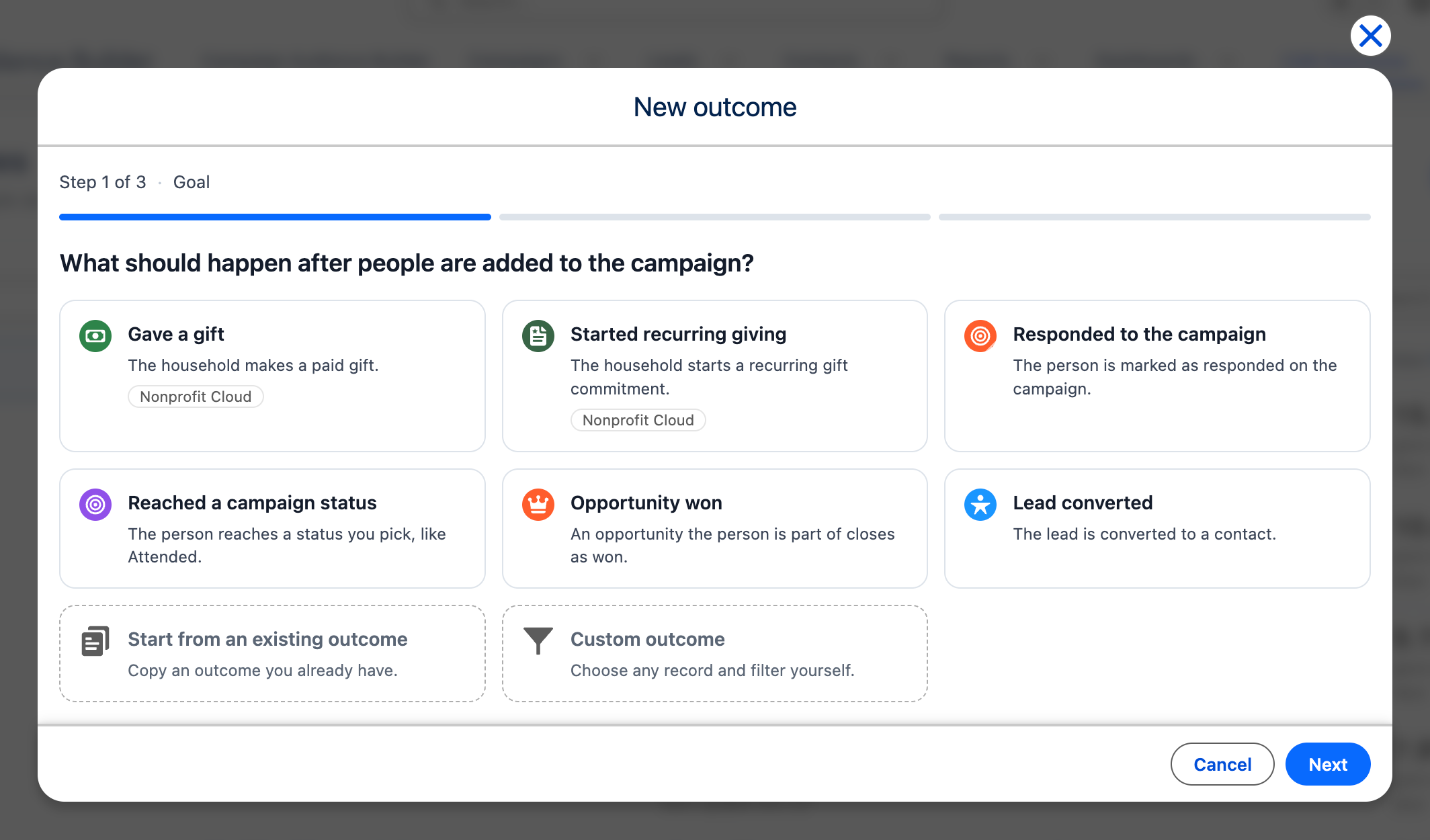
The goals offered depend on what your org has:
| Goal | Type | Counts | Counted per | Dated by | Asks for on Details |
|---|---|---|---|---|---|
| Gave a gift | Conversion event | A paid gift | Household | The gift’s transaction date | Minimum gift amount (optional) |
| Started recurring giving | Conversion event | A recurring gift commitment that started | Household | Its effective start date | – |
| Responded to the campaign | Campaign membership | Being marked as responded on the campaign | Whoever was added | – | – |
| Reached a campaign status | Campaign membership | Reaching one of the campaign member statuses you pick, such as Attended | Whoever was added | – | Campaign statuses |
| Opportunity won | Conversion event | An opportunity the contact has a contact role on, closed as won | Contact | Its close date | Minimum opportunity amount (optional) |
| Lead converted | Conversion event | The lead being converted | Lead | Its converted date | – |
Gave a gift and Started recurring giving carry the Nonprofit Cloud tag and appear in orgs that use Nonprofit Cloud gift transactions. A goal whose records or fields your org doesn’t have is not offered. For what “Counted per” means for your audiences, see Households, contacts and leads.
Start from a goal when it counts the right records and needs at most a minimum amount or a status. Set up a custom outcome when you need other conditions, such as a payment method, a record type or another date field.
Conversion event or campaign membership
Section titled “Conversion event or campaign membership”Every outcome is one of two types, shown in the goals table above. The type decides what you can do with it:
| Conversion event | Campaign membership | |
|---|---|---|
| Counts | A record elsewhere in Salesforce, such as a gift | The campaign member record, such as Responded |
| Measured on | Campaign adds, data extension adds and final actions | Campaign adds only |
| Control group | Yes | No: people in the control group never become campaign members |
| Metrics and the Conversions card | Yes | No |
| Last check for late entries | Yes | No: the result is final on the window’s last day |
The type is set when the outcome is created and can’t be changed later. A goal brings its type with it; for a custom outcome, you choose it in the first step.
Start from an existing outcome
Section titled “Start from an existing outcome”To reuse an outcome you already have, choose Start from an existing outcome at the end of the goal step; it appears once there is an outcome to copy. The outcomes you can open are listed below it: pick one and select Next. The copy starts with the original’s name, which you can change on Details, and keeps its description, what it counts, its window and its metrics. It doesn’t copy where the original is measured, so the copy measures nothing until you pick where. Like any new outcome, the copy goes into the folder you had open on the CAB Outcomes tab, unless you pick another under Folder on Details. To make the same copy in the original’s folder, select Clone on the original outcome’s page.
Set up a custom outcome
Section titled “Set up a custom outcome”When no goal fits, build the rule yourself from any type of Salesforce record. Choose Custom outcome at the end of the goal step and select Next. If you already picked a goal and find on Details that it doesn’t fit, select Switch to a custom outcome there: you keep the name and continue with the steps below.
- Choose what the outcome measures. This can’t be changed once the outcome exists.
- Conversion event counts a record elsewhere in Salesforce, such as a gift or a won opportunity, dated within the window. It works on every kind of action.
- Campaign membership checks the campaign member record the campaign add created, such as Responded or Status. Works only with campaign adds. For this type, do step 2, then go on with step 6.
- Name it and choose who it counts. Enter a Name and, if you like, pick a Folder. Under People added to the campaign are, choose Contact, Lead or Account. This is the outcome’s “Counted per”: every conversion is matched back to these records. Choose Account to count households or companies.
- Choose how the record relates to them. For a conversion event, under They count as converted when:
- A new record links to them: a gift, an opportunity or a case linked to the person.
- A record they belong to qualifies: a record they are linked to, such as the account behind a contact, matches your filters.
- Their own record qualifies: their own record matches, such as a “Customer since” date being set.
- Pick the record and filter it. Under Which record?, pick the record and add filters, such as Status equals Paid. To narrow it by a related record, select Add related object. To count opportunities, pick Opportunity to count only the contact in its “Contact ID” field, or Opportunity Contact Role to count every contact with a role on the opportunity.
- Optionally, limit who is measured. Only count people who match (optional) measures only some of the people added, for example contacts in one region.
- For a campaign membership outcome only: add at least one condition under Membership conditions.
- Set the timing. Under Conversion timing, choose the Conversion date field and the number of days in Count within … days of being added.
- Choose where to measure it, then save.
With A record they belong to qualifies, every person linked to that record counts as converted. If the outcome counts contacts and the household account qualifies, each contact in that household counts. The editor says so under the record: Counts every member linked to a qualifying Account. An outcome counted per household, such as Gave a gift, counts the household once instead.
Let Cabby draft the rule
Section titled “Let Cabby draft the rule”Cabby, CAB’s assistant, can draft the rule for a conversion event for you when your administrator has set it up. On the step where you define a conversion event, select Cabby and describe what should count in Describe the outcome you want…, for example: “Households count as converted when they give a gift over €50 within 30 days.”
Cabby fills in the record, its link to the people, the filters, the conversion date field and the days, and highlights what it changed. Use Undo and Redo in the dialog header to step through its changes and your own edits. Read the conditions it set and check they describe the records you mean, then complete the name and where it is measured yourself.
Cabby is available when you create or edit an outcome from the CAB Outcomes tab or an outcome’s page.
Choose the window
Section titled “Choose the window”The window decides which conversions count: the conversion date must fall within that many days of the day the person was added. Use the time it usually takes people to act. A gift after a mailing might take 30 days; a won opportunity might take 90. You can enter 1 to 730 days.
The window also decides when results update. CAB updates a group of people on days 7, 14, 30, 60, 90, 180, 270, 365, 545 and 730 after they were added, as far as the window reaches, and on the window’s last day. A conversion event outcome then gets one last check for conversions entered in Salesforce late: 30 days after the window ends, or earlier if one of the update days above comes first. There is no last check when it would fall after day 730. For example:
| Window | Updates on day | Last check, then final |
|---|---|---|
| 14 days | 7, 14 | 30 |
| 30 days | 7, 14, 30 | 60 |
| 100 days | 7, 14, 30, 60, 90, 100 | 130 |
A campaign membership outcome has no last check: its result is final on the window’s last day. The editor shows the days under Results update on.
A longer window means CAB keeps the list of people being measured for longer, which uses more storage. When outcome storage is full, new runs aren’t measured.
Pick where it is measured
Section titled “Pick where it is measured”An outcome counts nothing until an action measures it. You can pick it in these places:
| Where | How |
|---|---|
| Scheduled campaign add | In the schedule’s campaign settings, open Measure results and choose under Outcomes to measure. |
| Campaign add you run once with Add to Campaign | Open Measure results and choose the outcomes for this add. |
| Marketing Cloud data extension add, scheduled or run once | Under Advanced Settings, choose under Outcomes to measure. |
| Final action, scheduled or run once | Choose under Outcomes to measure. |
| The outcome itself | On Start measuring when you create it, or with Edit later, pick the scheduled campaign adds, data extension adds and final actions that should measure it. |
Counting starts with each action’s next run. A campaign membership outcome can only measure campaign adds. Only outcomes that count the same kind of record as the audience are offered, and the picker says how many it left out, for example 2 outcomes track other records and can’t measure this Contact audience. See Households, contacts and leads.
The picker suggests outcomes, such as ones used with the same audience before. With the Manage outcomes permission, New outcome there creates an outcome and picks it right away.
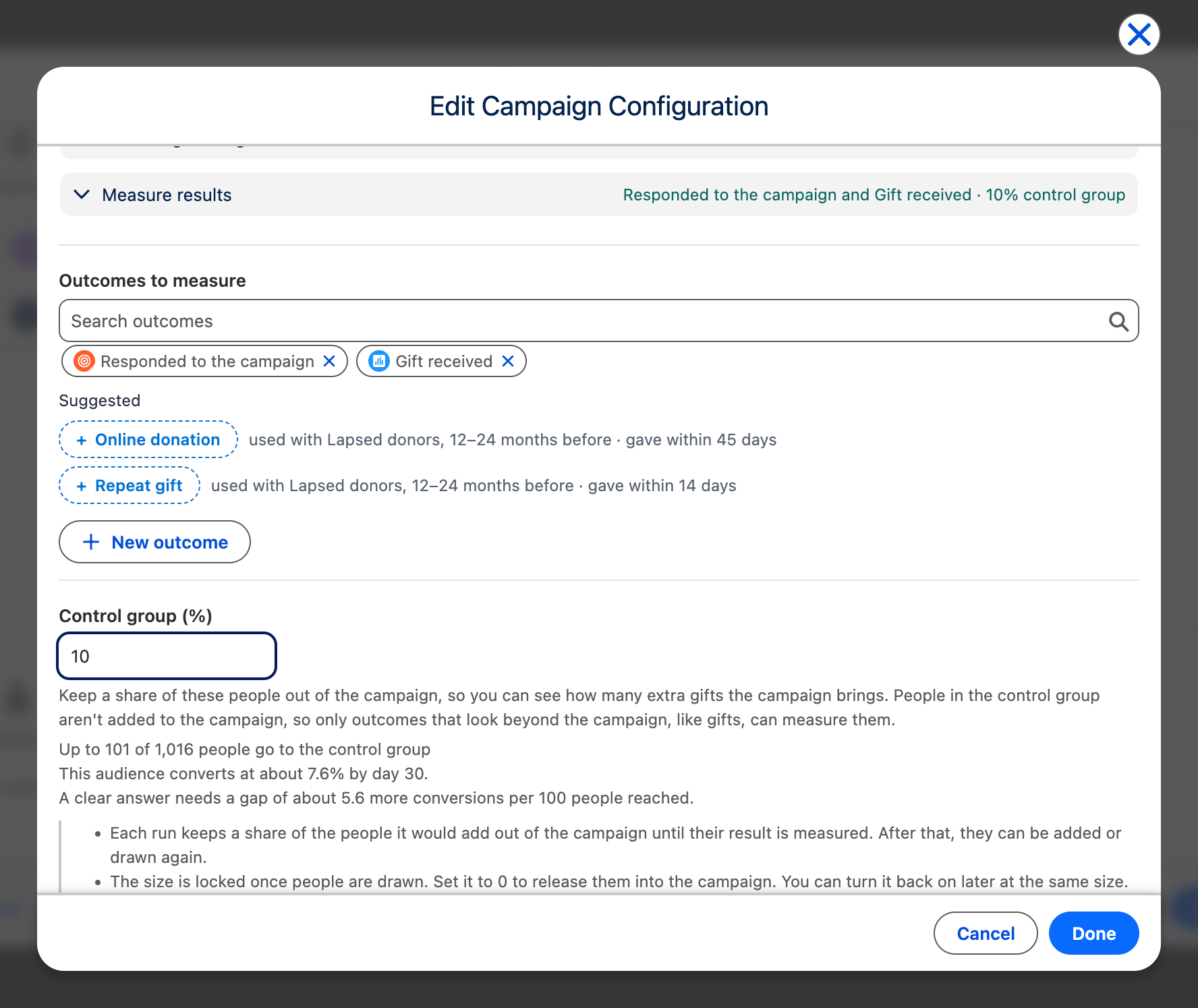
In this example, the campaign add also keeps a control group. Gift received compares the people added with the control group. Responded to the campaign is measured for the people added only, because people in the control group never become campaign members. See Measure extra conversions with a control group.
Up to 8 outcomes per action
Section titled “Up to 8 outcomes per action”Each action can measure up to 8 outcomes. More than 4 make its nightly update take longer, and the picker warns you. At 8, remove one to add another.
Data extension adds and final actions need run tracking
Section titled “Data extension adds and final actions need run tracking”To find the people a data extension add or final action newly added, CAB compares each run with the one before. That needs the setting Track membership changes between runs. While it is off, the picker on a scheduled data extension add or final action says so instead of offering outcomes. Data extension adds and final actions that already measure an outcome are measured on their first run and then stop. Campaign adds, and actions run once by hand, are measured without it. Ask your administrator to turn it on.
Change or delete an outcome
Section titled “Change or delete an outcome”Select Edit on the outcome’s page. You can change everything except whether it is a conversion event or a campaign membership outcome. When you change what counts or the window, people already being measured keep the earlier rule, and people added from then on use the new one. The outcome’s page shows the date of the change.
To move an outcome to another folder, select Move to folder… in the menu at the end of its row on the CAB Outcomes tab. Pick a folder, or No folder to take it out of its folder, and select the Move to … button. To move it into a new folder, select New folder instead in the same dialog, enter a name under Folder name and select Create folder. You can also change Folder with Edit. Moving an outcome doesn’t change what it measures.
Select Delete to remove the outcome and its page and stop all measuring for it. To stop measuring but keep its results on the CAB Outcomes tab, remove it from the actions that measure it instead.