

Split a schedule's new members between campaigns
Send each new member to exactly one of several campaigns, run after run
A split groups campaign cards of one schedule and divides the audience’s new members between their campaigns. Use it when one scheduled audience feeds several campaigns and no member should be in more than one of them. Each new member goes into exactly one campaign of the split. Campaign cards outside a split still receive every member.
To divide the results of a single run by hand, see Split audience results across campaigns.
Add a split
Section titled “Add a split”- Open the audience, select Manage Schedule, and go to Configure Actions → Campaigns.
- Select Add Split, next to Add Campaign. It is available once the schedule has two campaign cards.
- In New split, select Add Campaign. Pick a card listed under On this schedule, or choose New campaign… to configure another campaign for the schedule.
- Give each campaign a size: a number of members, or a percentage with % of what’s left. Leave one size empty; that campaign shows Gets the rest. The first campaign you add gets the rest until you give it a size. If every campaign has a percentage and the percentages add up to 100%, you don’t need a campaign that gets the rest.
- If a campaign has a fixed number of members, choose whether to turn on Refill fixed sizes when members leave.
- Select Done, then Save the schedule.
A split needs at least two campaigns. Exactly one of them gets the rest, unless all campaigns have percentages that add up to 100%. A campaign card belongs to one split at a time.
How members are assigned
Section titled “How members are assigned”Only new members are assigned: audience members who are in none of the split’s campaigns. Members already in one of its campaigns stay where they are, including members someone moved by hand.
CAB fills the fixed sizes first, then applies each percentage to the new members that remain, and gives everyone else to the campaign that gets the rest. Consider a first run with 20,000 new members:
| Campaign | Size | New members |
|---|---|---|
| Newsletter · Variant A | 2,000 members | 2,000 |
| Newsletter · Variant B | 10 % of what’s left | 1,800 |
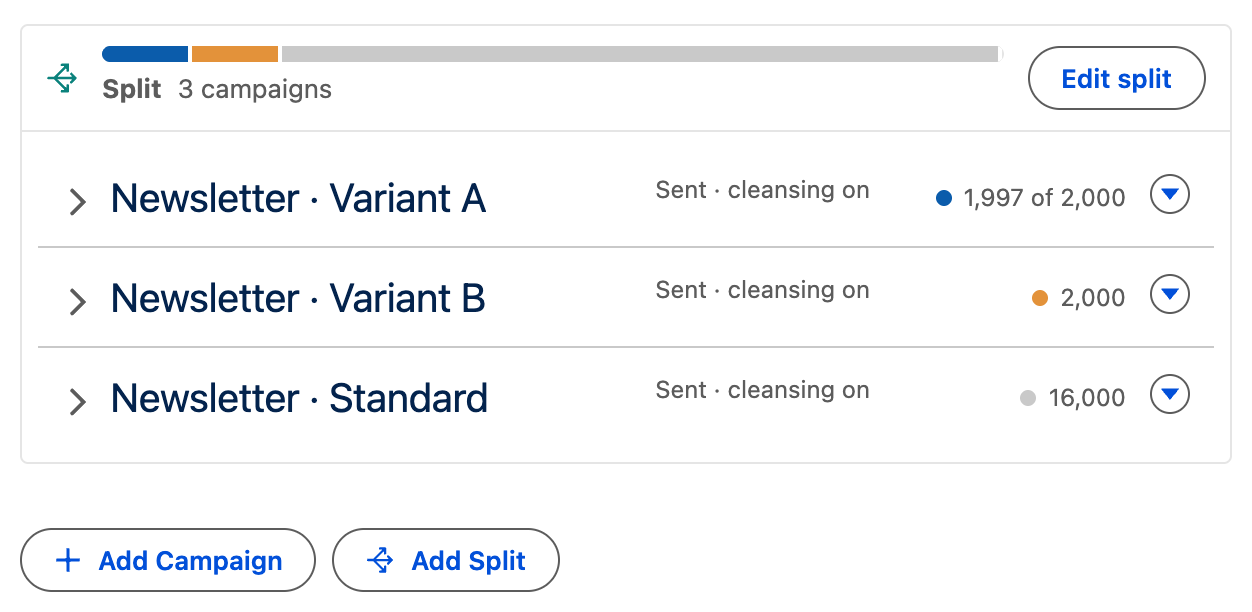
| Newsletter · Standard | Gets the rest | 16,200 |
The assignment is random and independent of record order. Each split draws on its own, so the campaign a member lands in for one split says nothing about where the same member lands in another split.
A fixed-size campaign stops taking members once it is full. With Refill fixed sizes when members leave turned on, new members take the place of members that cleansing removes. Turned off, a fixed campaign fills up once and then shrinks. When a run has fewer new members than the fixed sizes still need, the fixed campaigns share them in proportion to what each one is missing.
Read and change a split
Section titled “Read and change a split”The cards of a split sit together under a header that reads Split with the number of campaigns. Before the first run it shows Counts appear after the first run and each card shows its size. After a run, the header also shows a bar of the current campaign sizes, and each card shows how many members its campaign has now. A fixed campaign shows that count against its size, for example 1,997 of 2,000.
- Select Edit split to change sizes, add campaigns, or select Remove split. Changes apply to new members only; current members stay in their campaigns.
- On a card, select Remove from split. After you confirm Remove from split?, the campaign receives every audience member from the next run, like a campaign outside a split, and keeps its current members.
- If you delete a card of a split after the schedule has run, its campaign stays in the split as Removed from the schedule · keeps its members. It gets no new members and keeps its current members.
Processing scope, cleansing, and control groups
Section titled “Processing scope, cleansing, and control groups”All campaigns of a split use the same Processing scope. When you change it on one card, or add a card with a different scope, CAB asks Apply to the whole split? before it sets the scope on every campaign of the split. With Changes only, later runs check only the members who joined since the previous run whenever that gives the same result as checking everyone. See Process only what changed.
Cleansing, the outcomes to measure, and the control group stay on each card. A card’s control group keeps part of the members the split assigns to that card out of its campaign, and those members are not assigned to another campaign of the split. When the control group is released, its members join the campaign of the card that kept them out on that card’s next run. See Measure extra conversions with a control group.
A split also works on a combination or waterfall sequence schedule. On a waterfall, all campaigns of a split belong to the same step.
Follow a run
Section titled “Follow a run”A scheduled run handles a split in two parts. It first decides which campaign each new member goes to, then adds the members to the campaigns. The Background operations monitor shows the first part as Schedule split, with one progress bar that never moves back. Each card then appears as its own Campaign add entry for its campaign; a card with cleansing turned on also shows a Cleansing campaign step. If that cleansing stops before it finishes, the entry shows Failed and the card adds no new members in that run. The next run counts those people as new again, so it may place them in a different card. Campaign sizes change only in the second part.
A run adds members to a split’s campaigns only after the first part has finished for the whole split. If that part fails, none of the split’s campaigns receive new members in that run, the schedule’s creator is notified, and the next run assigns those members.
In Run History, the campaign additions of a run list a split’s campaigns under one Split row with their totals. Each campaign shows the size it had in that run, so the history stays accurate after the split is edited.
Limits
Section titled “Limits”- A split has between 2 and 30 campaigns.
- The fixed sizes of all splits on one schedule add up to at most 100,000 members, counting the members their control groups hold back. Use percentages for larger campaigns.