
Turn on and manage Outcomes
Set up Outcomes once, then keep its storage and nightly work in bounds
Outcomes is available in the CAB Professional Edition and higher. An administrator with the Campaign Audience Builder Admin permission set turns it on and manages its limits in CAB Settings.
Turn on Outcomes
Section titled “Turn on Outcomes”CAB Settings → Getting Started → Turn on Outcomes
The page is a checklist that shows how many items are ready. Work through each item:
- Track who is added each run. Select Turn on to switch on Track membership changes between runs. Data extension adds and final actions need it to tell who is new in each run after the first. Campaign adds are measured without it.
- Nightly update. Select Turn on. Results then update every night at 03:00 in the time zone of the user who turned it on, and the row shows Scheduled. Without it, nothing is measured. You become the user the nightly update runs as; see Choose who schedules the nightly update. To update results without waiting for the night, select Update results now on the same row. Results refresh within a few minutes.
- Storage limit. Select Turn on and confirm the limit in Before you start measuring. It is prefilled with a fifth of your org’s data storage. You can change it later as Limit (MB); see Set the storage limit.
- Who can use it. Give people access, as described below.
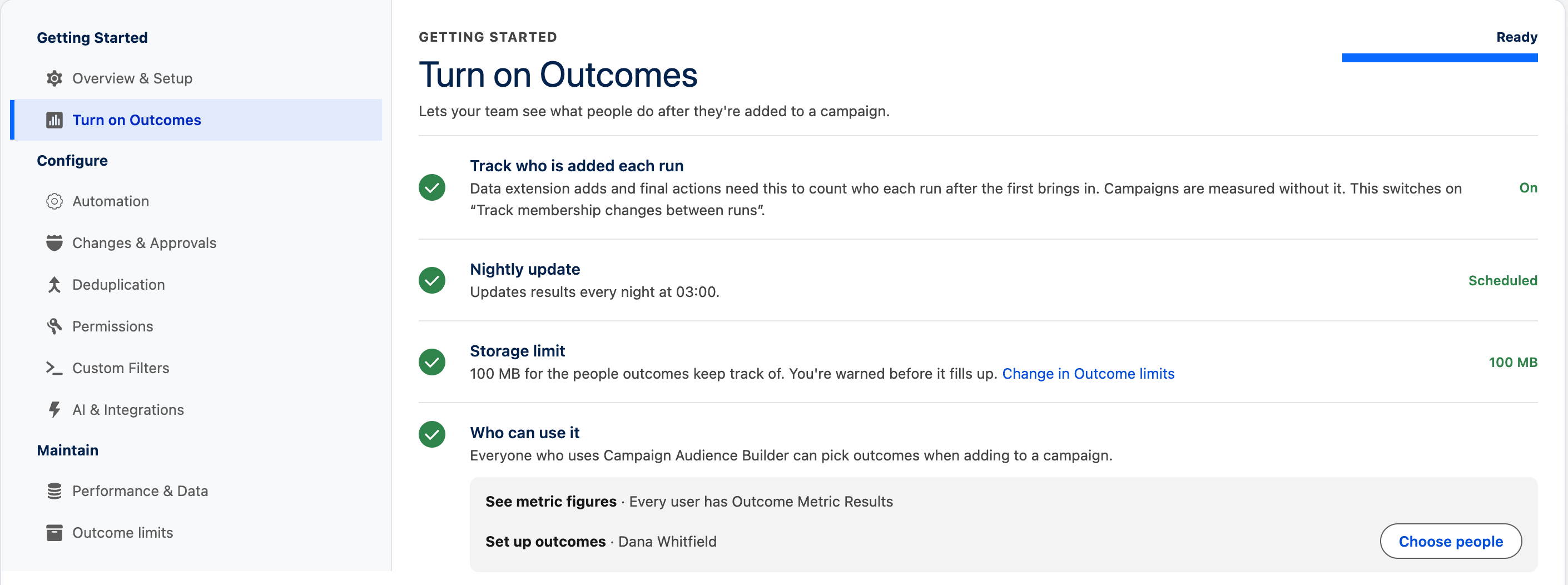
Everyone who uses Campaign Audience Builder can then pick outcomes. CAB measures people added from then on; earlier runs are not measured afterwards.
Give people access
Section titled “Give people access”On Who can use it:
- Under See metric figures, select Give to all users to assign Campaign Audience Builder Outcome Metric Results to every Campaign Audience Builder user. The row tells you how many users don’t have it yet.
- Under Set up outcomes, select Choose people to give Campaign Audience Builder Outcome Management to the people who create and edit outcomes.
You can assign the same permission sets under CAB Settings → Permissions, on the Outcome Metric Results and Manage outcomes cards.
| Permission set | Lets people |
|---|---|
| Campaign Audience Builder User | Read outcomes and their results, see the folders on the CAB Outcomes tab, pick outcomes where they add people, keep a control group, use outcome filters, and add them to an audience with Use in audience. |
| Campaign Audience Builder Outcome Metric Results | See the results of custom metrics, such as the total gift amount. |
| Campaign Audience Builder Outcome Management | Create, edit, clone and delete outcomes; create, rename and delete folders and move outcomes into them; add, edit and reorder custom metrics; see the results of custom metrics. Includes the Manage outcomes permission. |
| Campaign Audience Builder Admin | Use the Turn on Outcomes and Outcome limits pages. Includes the Manage outcomes permission. The permission set group Campaign Audience Builder: Admin also includes Outcome Management. |
Salesforce record and field access still apply when people open the members and evidence of an action.
Choose who schedules the nightly update
Section titled “Choose who schedules the nightly update”The user who selects Turn on for the nightly update is the user it runs as. That user’s access decides which records custom metrics can count. Schedule it as a user who can read every record your metrics should include, such as the gifts or opportunities your outcomes count, and who has the View Setup and Configuration permission (see Keep nightly processing in bounds).
When someone selects Update results now, the custom metrics it calculates count the records that person can read.
Set the storage limit
Section titled “Set the storage limit”CAB Settings → Maintain → Outcome limits
To measure an outcome, CAB stores who each action added and the records that showed a conversion, until the last update. That uses your org’s data storage. The page shows how much is in use, how fast it grew over the last days, and how much it would grow in a year at that pace. When the limit would be reached within a year, it says when.
Under The limit, inside your org’s storage, set Limit (MB) and Warn at (%), then select Save. The default limit is a fifth of the org’s allocation; the default warning is at 50%. Saving takes a minute to come into force.
At the limit, audiences still run and their actions still add people, and measurements already running finish normally. New measurements are not started; those runs show Not measured. To free space, measure fewer outcomes on fewer actions, keep measured people for a shorter time, or raise the limit.
The switch at the top of the page, next to Measuring is on, turns measuring off and on. While it is off, nothing new is stored and actions still run; they just show no conversion rate.
What counts against the limit
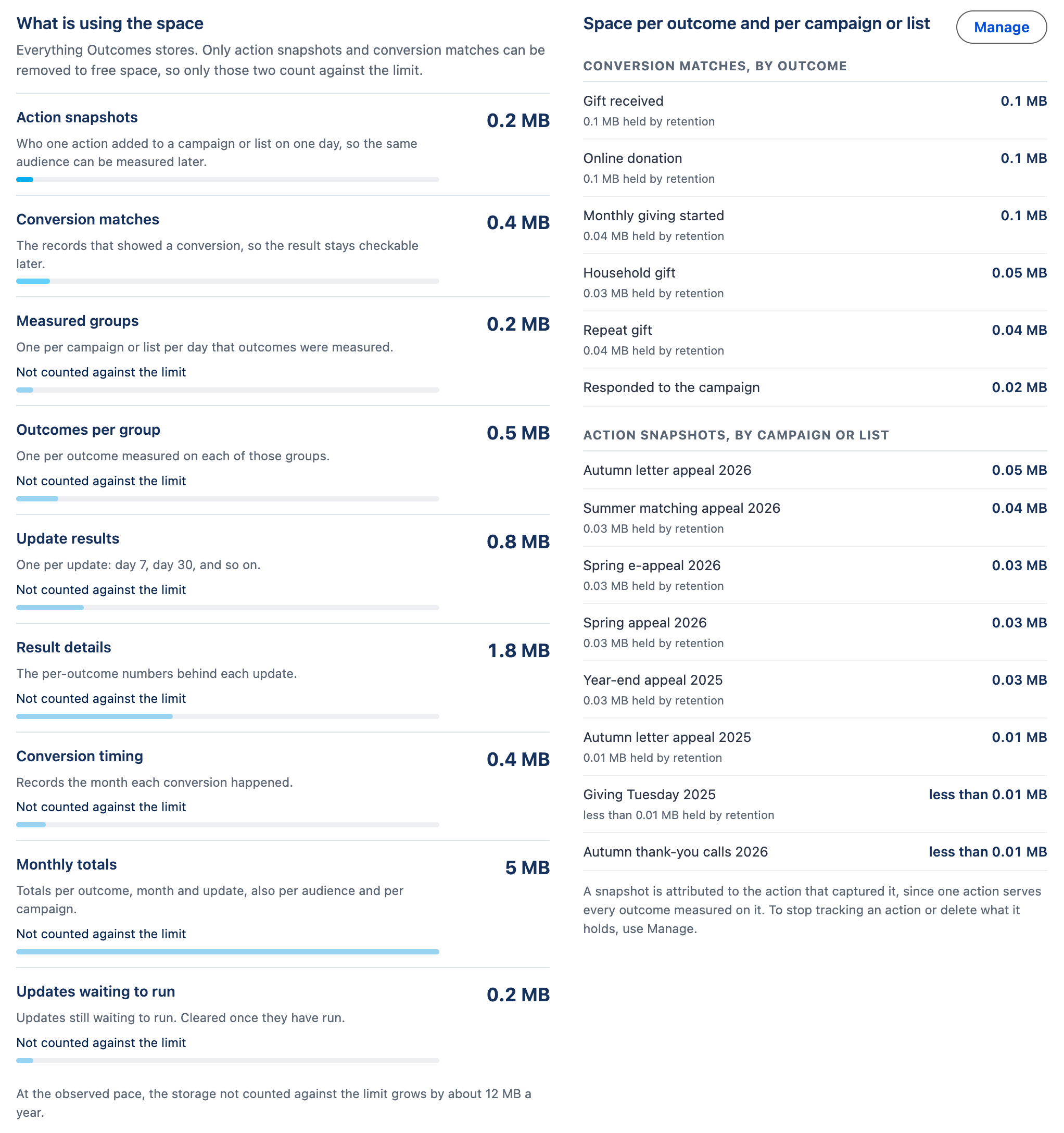
Section titled “What counts against the limit”What is using the space lists everything Outcomes stores, with its size. Only the first two rows count against the limit, because they are the only ones you can delete to free space, with Manage (see below):
- Action snapshots: who each action added to a campaign or list (a data extension, or the people a final action ran on).
- Conversion matches: the records that showed a conversion.
Every other row is marked Not counted against the limit: Measured groups, Outcomes per group, Update results, Result details, Conversion timing, Monthly totals (kept per outcome, month and update, and also per audience and per campaign) and Updates waiting to run. These rows still use your org’s data storage; they hold your results. They never stop a measurement, and you can’t delete them on this page. The line under the list says how much this storage grows or shrinks in a year at the pace of the last days, for example At the observed pace, the storage not counted against the limit grows by about 12 MB a year. Until there is a figure, for example while measuring is off, it says Yearly growth of the storage not counted against the limit: not available.
At the earliest after about seven months, CAB keeps older results as monthly totals and summaries to save space. Your results don’t change. A month is summarized only once everyone added in it, and in the months before it, has had their final result, so a long window, such as 730 days, delays it. If you keep measured people longer, CAB summarizes their results later (see Keep measured people available longer). Once older months are summarized, the line under the list can show this storage shrinking.
A summarized month can only be counted as a whole. If you pick a time frame on an outcome’s page that starts in the middle of one, Which audiences did best and Campaign ranking count everyone added in that month and say so, for example Audience figures cover actions from Oct 2025 on. See Choose a time frame.
This storage grows with the number of groups and outcomes you measure. Measuring fewer outcomes on fewer actions keeps it smaller, and keeping measured people for a shorter time lets CAB summarize their groups sooner.
Beside the list, Space per outcome and per campaign or list breaks down the storage that counts against the limit: Conversion matches, by outcome and Action snapshots, by campaign or list. A line such as 0.1 MB held by retention says how much of it is kept only because measured people stay available longer (see Keep measured people available longer). To stop tracking an action or delete what it holds, select Manage next to the heading. For each campaign, data extension or final action:
- Stop tracking stops measuring it. What is already stored stays and frees its space as its updates finish. You can start again at any time.
- Delete deletes its action snapshots and conversion matches now. Updates that haven’t run yet no longer run, so its results stay as they are. This can’t be undone.
Keep measured people available longer
Section titled “Keep measured people available longer”By default, CAB deletes the list of people it measured for an action as soon as their last update is done. Their results stay; only the list of people goes. Keeping the list longer lets your team use those people afterwards: in outcome filters, in Use in audience follow-ups, in custom metrics and when checking who converted.
Under How long measured people remain available, set Keep for (days after the last update) and select Save. The page shows the maximum your org allows, by default 760 days: the longest possible window, 730 days, plus 30 days.
- The longer you keep people, the more runs each night’s custom metric calculation has to cover. If the days you enter would make an outcome’s metrics too large to calculate in one night, the page names the outcome before you save.
- Keeping people longer uses more storage.
- Shortening the period asks for confirmation and says how many people become unavailable. Outcome filters stop finding them, and audiences built on those filters get smaller. This can’t be undone.
Keep nightly processing in bounds
Section titled “Keep nightly processing in bounds”Outcomes does its work at night, in Salesforce background jobs. So that the rest of your org keeps running, it uses only a share of the org’s daily background jobs.
Under Nightly processing, set Share of daily background jobs for outcomes (%) between 5 and 50, then select Save. The default is 15. The page shows how many background jobs Outcomes used in the last 24 hours and what the share allows.
When Outcomes reaches its share, or the org as a whole has used 60% of its daily background jobs, Outcomes pauses and carries on the next night. If it runs short, custom metrics wait first, so rates keep updating.
If you measure many outcomes and see pauses, raise the share or reduce other background work in the org. Measuring at most 4 outcomes on an action keeps its nightly work smallest; actions can measure up to 8.
Notifications
Section titled “Notifications”Outcomes tells you when something needs your attention, in the notification cards under the Campaign Audience Builder navigation bar:
- Outcome storage is filling up, from the warning threshold, and Outcome storage limit reached. Every Campaign Audience Builder user sees these. Review storage opens Outcome limits.
- Outcomes paused two nights in a row, for administrators, with the numbers from the last pause. Review outcome limits opens the page.
- Connect your outcome data to Cabby, when Cabby is turned on but can’t see outcome results.
When the nightly update is not scheduled, nothing is measured and no results appear. The CAB Outcomes tab says Outcomes are not measured yet. Administrators get Turn it on, which opens Turn on Outcomes; everyone else is asked to contact an administrator. When data extension adds or final actions measure outcomes while Track membership changes between runs is off, the tab says so and offers Turn it on.
Let Cabby read outcome results
Section titled “Let Cabby read outcome results”CAB Settings → AI & Integrations → AI Agent Setup → Cabby data access → Outcome data
Turn on Give Cabby access to outcome data and save. Cabby then explains results in Cabby’s summary on outcome pages and ranks its audience suggestions by what actually performed in your org.
Cabby receives counts and rates per audience, campaign and outcome, the outcome names and, when someone allowed to see custom metric results asks for a summary, those metric results. It never receives record IDs or lists of people. The data stays private to your org and is not used for model training. Turning the access off deletes what was shared. See Set up and govern Cabby.