

Build audience sequences
Use several audiences as one
A sequence uses several audiences together instead of one at a time. There are two sequence types:
- Waterfall — a top-down prioritized sequence. Each step produces its own sub-audience, excluding every record that already belongs to a higher-priority step. The leading steps often act as pure exclusions.
- Combination — a running total built step by step with operators. After the final step there is one new audience. Each step uses one of three operators:
- Union — includes all results of audience A and audience B.
- Exclusion — excludes all results of audience A that are part of audience B.
- Intersection — returns only results that are part of both audience A and audience B.
Create a sequence
Section titled “Create a sequence”- On the CAB home page, select New Audience Sequence.
- Name the sequence and choose its type.
- Select Add Audience for each audience that should become a step. For a combination, also choose the operator for each step.
- Reorder steps to set their priority, or remove entries you no longer need. A sequence always keeps at least one step — to get rid of the last one, delete the sequence itself.
- Select Run to execute the sequence.
You can also create a sequence from an Overlap Analysis segment: Create Combination works from any segment, and Create Waterfall from the “only in” segments.
Read the ledger
Section titled “Read the ledger”The sequence record page presents a combination or waterfall as one table. Each row carries a step’s setup and its result together, so every step of a long sequence stays comparable in one view.
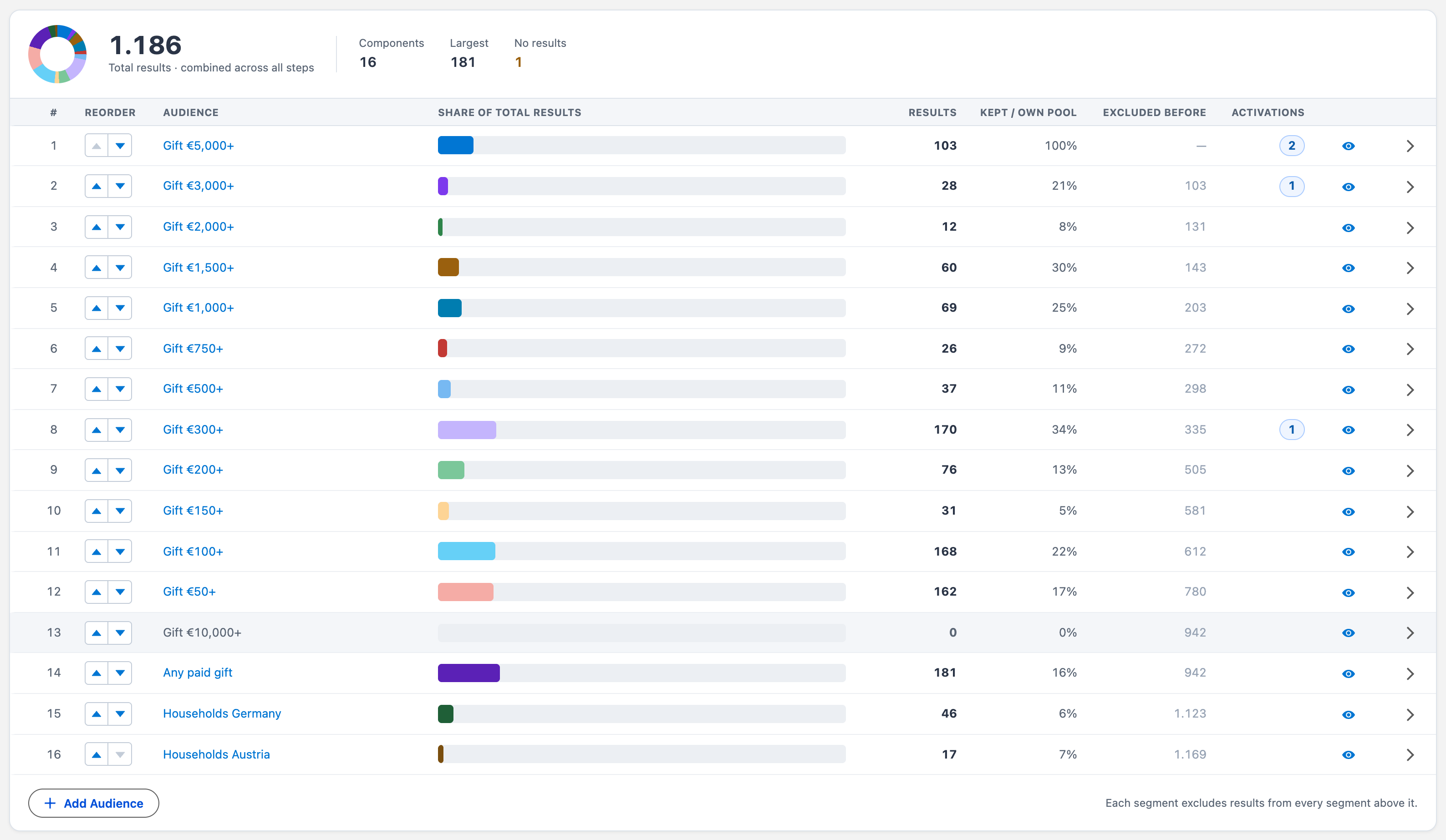
The summary strip at the top gives the sequence total, how many steps it has, the largest single step, and how many steps returned nothing. Below it, one row per step:
- # and Reorder — the step’s position, and the controls to move it.
- Audience — the audience this step uses. Select it to open the audience record in a new tab.
- Share of total results — how much of everything the sequence matched came from this step.
- Results, Kept / own pool and Excluded before — what the step returned, what share of its own audience that was, and how many records earlier steps had already claimed.
- Activations — how many times this step’s results have been acted on. Appears once the sequence has run.
A step that returned nothing is shown quietly in grey rather than as a warning; the No results figure in the summary strip is what draws attention to it.
See which steps you have already acted on
Section titled “See which steps you have already acted on”Because each waterfall step is its own deliverable, every step is activated separately. The Activations column shows how many times a step’s results have been added to a Campaign, an Account Engagement list, a Marketing Cloud Data Extension or a Final Action — so a long sequence tells you at a glance what is still outstanding.
Select the count to see the activations themselves, in the same format as the run details.
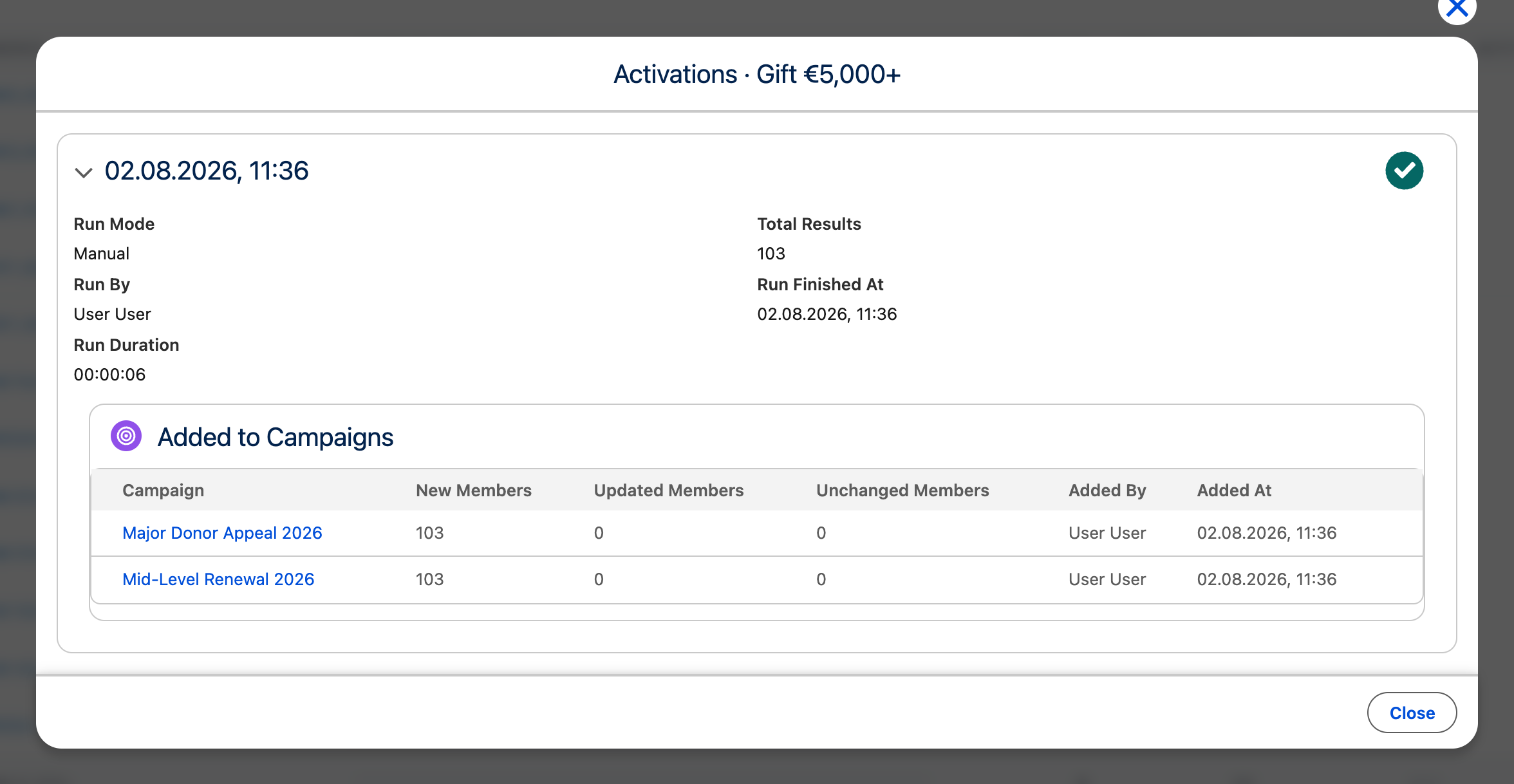
A step with no activations shows nothing at all rather than a zero, so the counts that are there stand out. The column counts the run currently shown: re-running the sequence produces new results, which have not been activated yet.
Select the eye icon on any row to open that step’s results. The results screen is the same as for a standalone audience, so from there you can add the records to a Campaign, an Account Engagement list, or a Marketing Cloud Data Extension. Select the row itself to expand it for the step’s own audience size, how much it lost to overlap with earlier steps, and its share of the total.
Combination sequences
Section titled “Combination sequences”A combination is a running total that each operator rewrites, so its ledger swaps two columns. Type shows the operator symbol and name, and Effect on the result set draws each step’s change as a bar from a centre line — right for a step that adds, left for a step that removes, coloured by operator. Change gives the signed figure and Running total the size after that step.
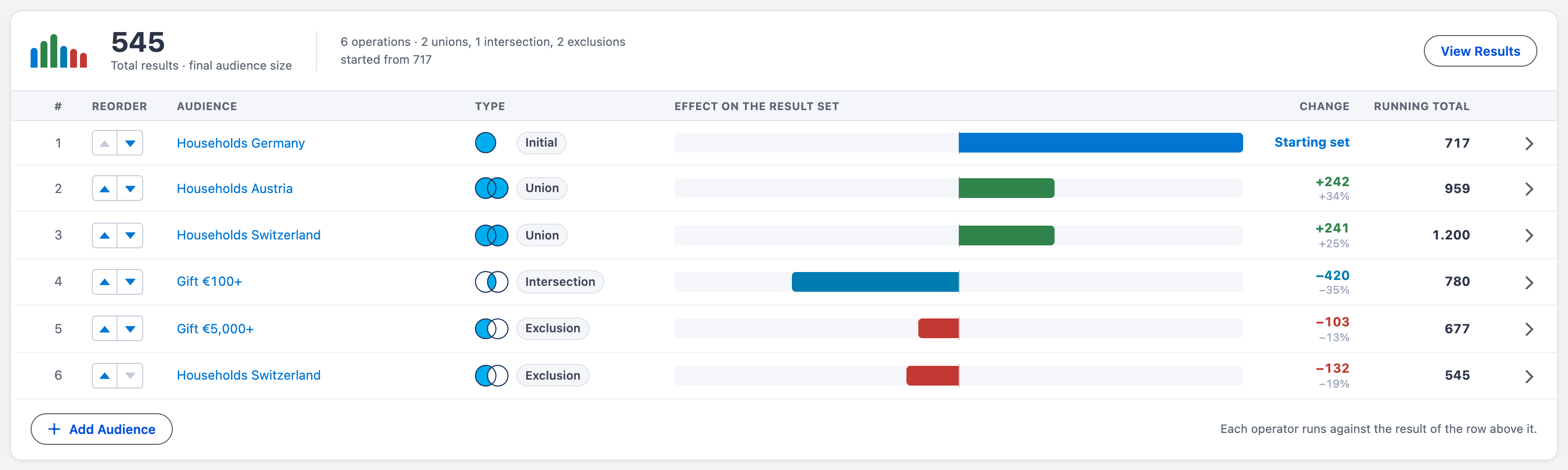
Expanding a combination row shows the previous total, the new running total, the step audience’s own size, and a sentence describing what the operator did.
Change a sequence after it has run
Section titled “Change a sequence after it has run”Because setup and result share a row, the ledger tracks which results a change invalidates. A waterfall step depends only on itself and the steps above it, so editing at a position leaves every step above it correct and marks that step and everything below it Out of date.
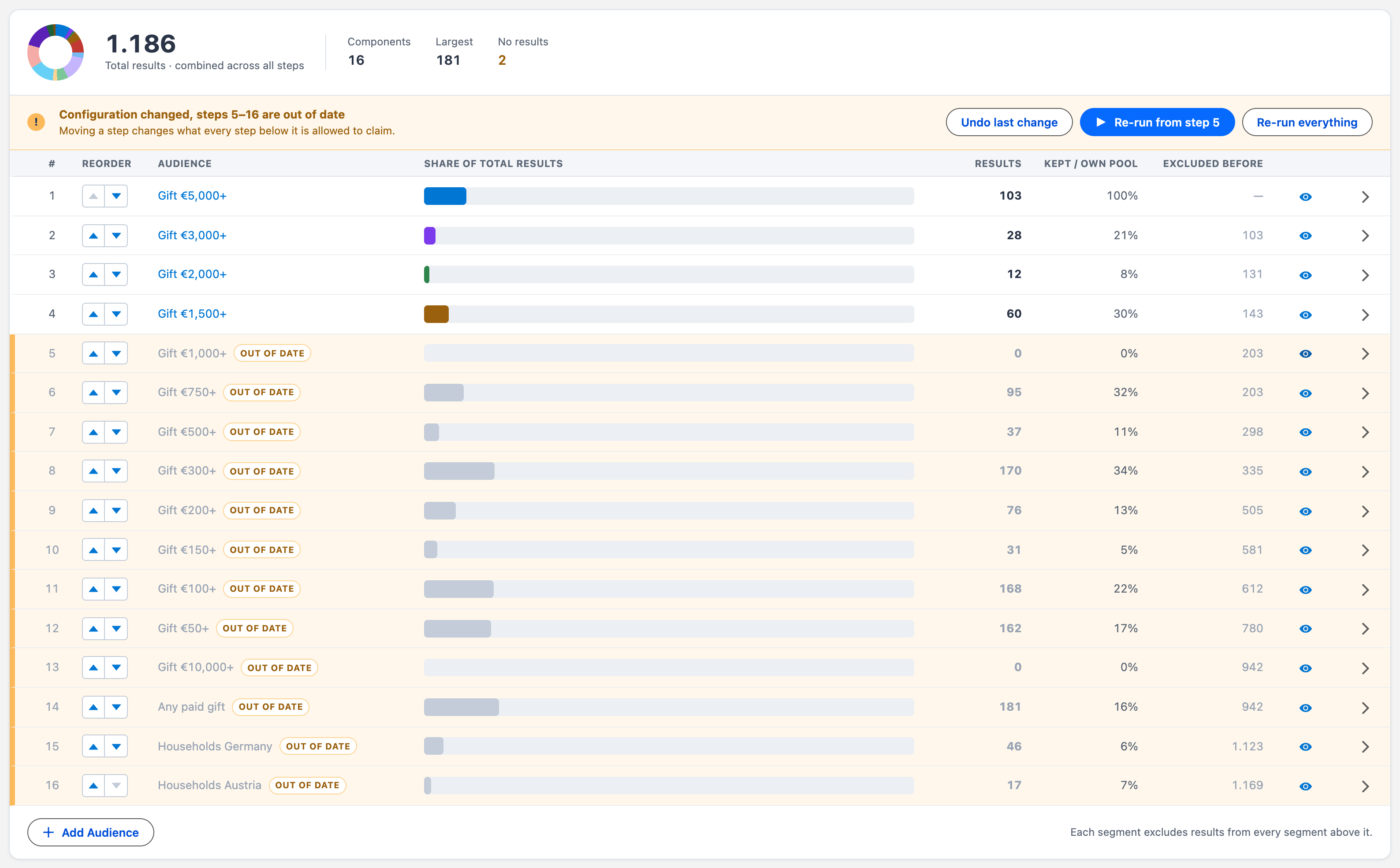
Out-of-date rows keep the numbers from the last run instead of blanking, so you can still see what the sequence produced before the change. A banner names the affected range and offers:
- Undo last change — reverses the most recent edit.
- Re-run from step N — recalculates from the first affected step, reusing the steps above it.
- Re-run everything — recalculates the whole sequence.
Both re-run options are always offered. The boundary only tracks configuration changes; the steps above it were still calculated against data as old as the last run, so a full re-run remains the safer choice when that run was a while ago. When the last run is recent the partial option is emphasised; when it is old, Re-run everything takes over and a note explains how old the retained results are.
Editing is not confirmed step by step. Make as many changes as you like and re-run once. Removing a step still asks for confirmation, because it is the only change that cannot be undone by re-running.
During a run the edit controls lock, the summary strip shows which step is being calculated, and rows grey out until they are recalculated.
Automate a sequence
Section titled “Automate a sequence”Sequences can run on a recurring schedule with the same automation controls as standalone audiences, including delta processing, tracked outcomes, and change approval. See Schedule combination and waterfall sequences.
Before you start
Section titled “Before you start”- Your CAB edition must include sequences.
- Platform Cache must be available for sequence results.