

Use a library filter in an audience
Add a proven filter instead of rebuilding it
When the library already has the filter you need, add it to your audience from the filter editor. You do not need any library permission for this. What you can do depends on the entry: you copy or sync a fixed entry, and you configure and copy a configurable entry.
Add an entry to a filter
Section titled “Add an entry to a filter”- On the audience canvas, double-click the object whose filter you want to change.
- In the filter editor, select Copy Existing Filter. The dialog is named after the object, for example Account Filter Library.
- Find the entry under From Library. Search for a field name or a value to narrow the list. Each card shows the entry’s conditions, related objects and description.
- Select one of the buttons on the card:
- Copy adds the entry’s conditions to your filter. You can edit them, and later changes to the entry do not reach your audience.
- Sync adds a live reference. The filter follows every later change to the entry, until you detach it.
- Configure & copy appears instead of the other two on a configurable entry. See Fill in a configurable entry.
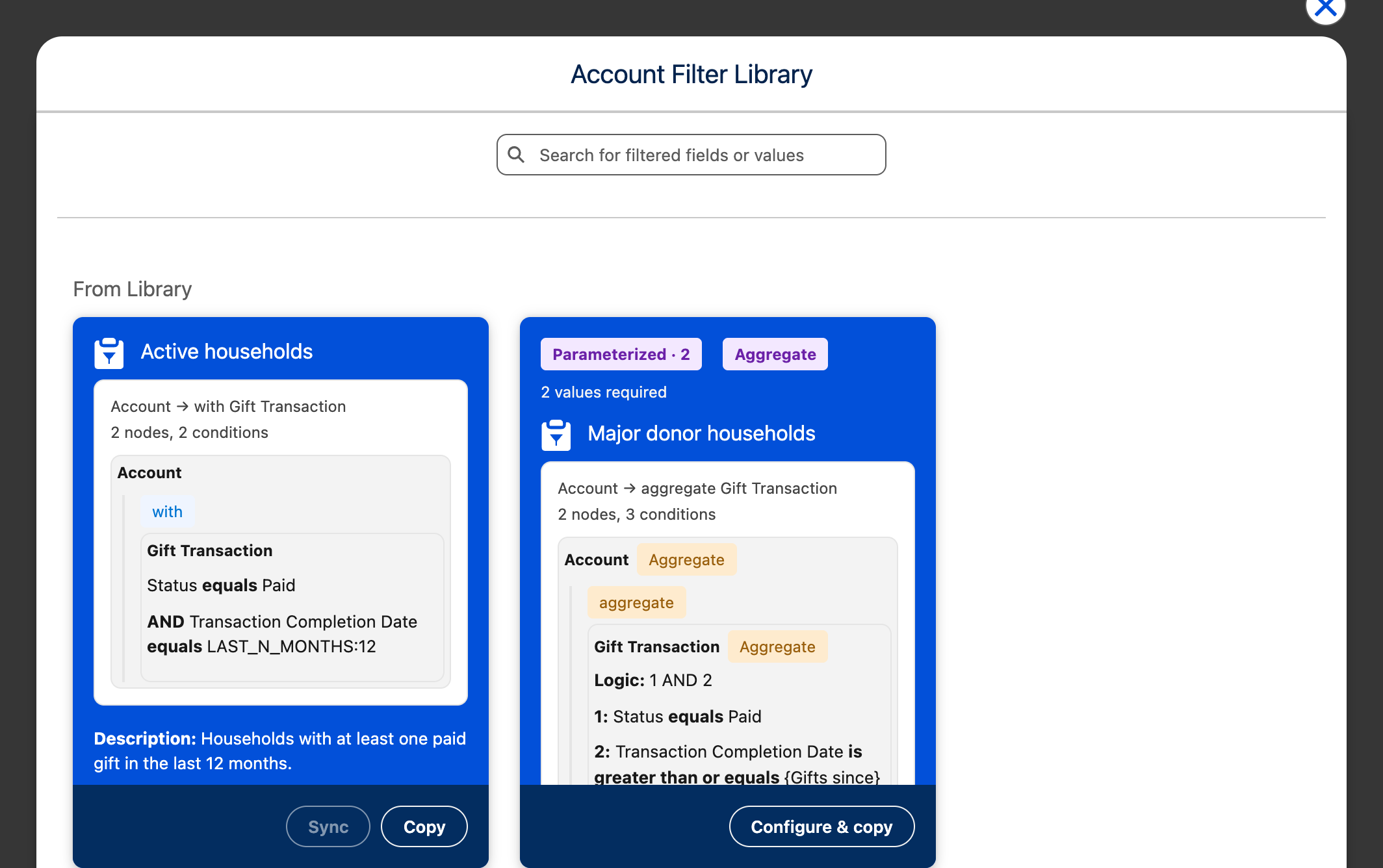
Under From Other Audiences, the same dialog also lists the filters that other audiences use on this object. Those cards have a Select button instead.
Fill in a configurable entry
Section titled “Fill in a configurable entry”A configurable entry leaves some values open, for example an amount or a date. The card shows how many: 2 values required.
- Select Configure & copy. The dialog shows the entry and one field per parameter.
- Fill in every value. Each field says what kind of value it takes, how many conditions it fills, and the curator’s instructions. The counter at the top shows how many values are still needed.
- Select Copy to audience. The button becomes available when every value is filled in.
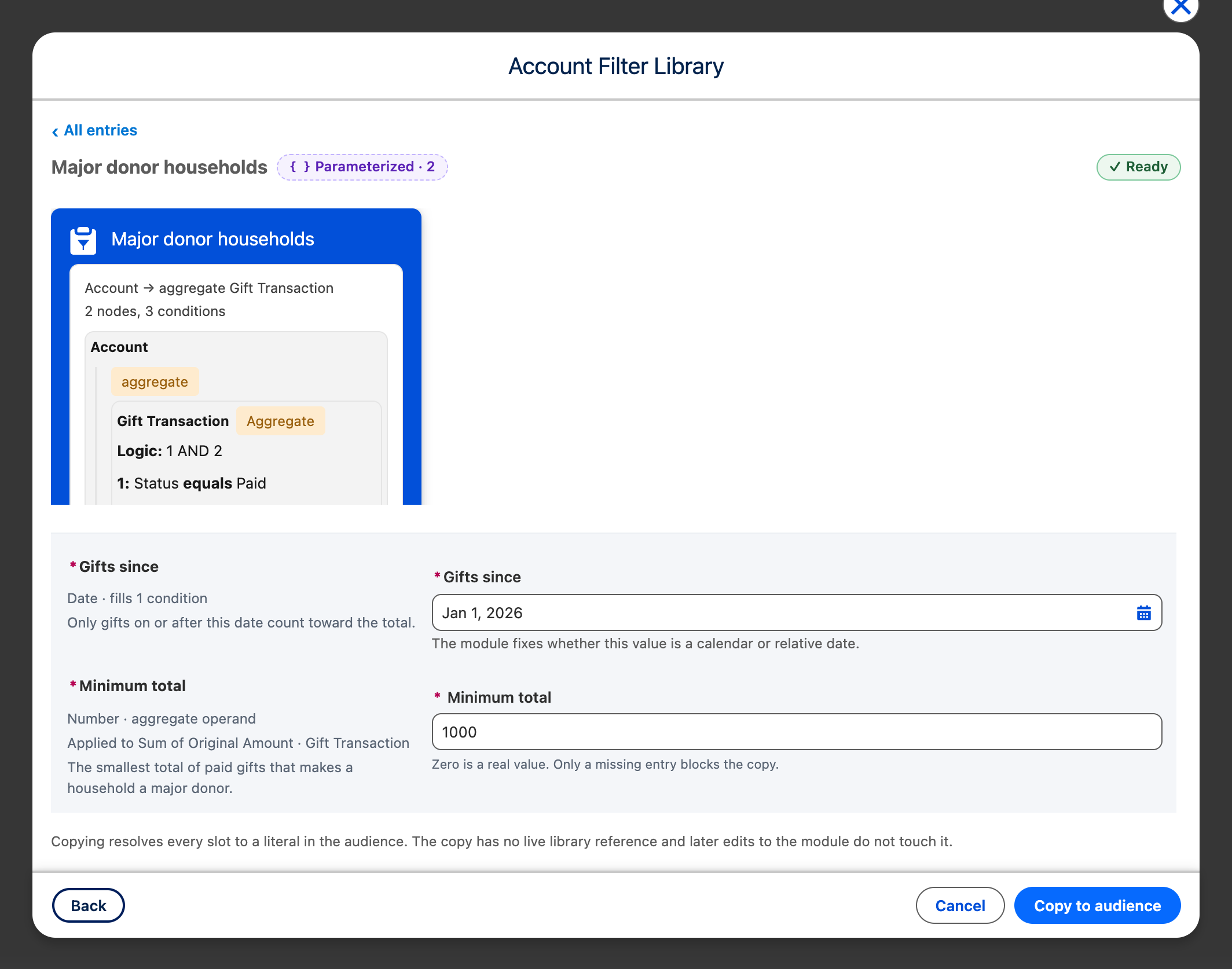
CAB adds ordinary, editable conditions with your values. The copy has no link to the library, so later changes to the entry do not reach your audience. All entries and Back return to the list and keep the values you entered. Cancel closes the dialog and changes nothing. If someone changes the entry while you fill it in, select Reload module and check the values again.
A few value rules:
- Zero is a real value. Only an empty field blocks the copy.
- A count needs a whole number of at least one.
- A date parameter is either a calendar date or a relative date. The entry fixes which one.
- One parameter can fill several conditions. You enter the value once.
Recognize synced and locked filters
Section titled “Recognize synced and locked filters”On the canvas, a synced filter has a sync icon next to its name, and a locked filter has a lock icon.
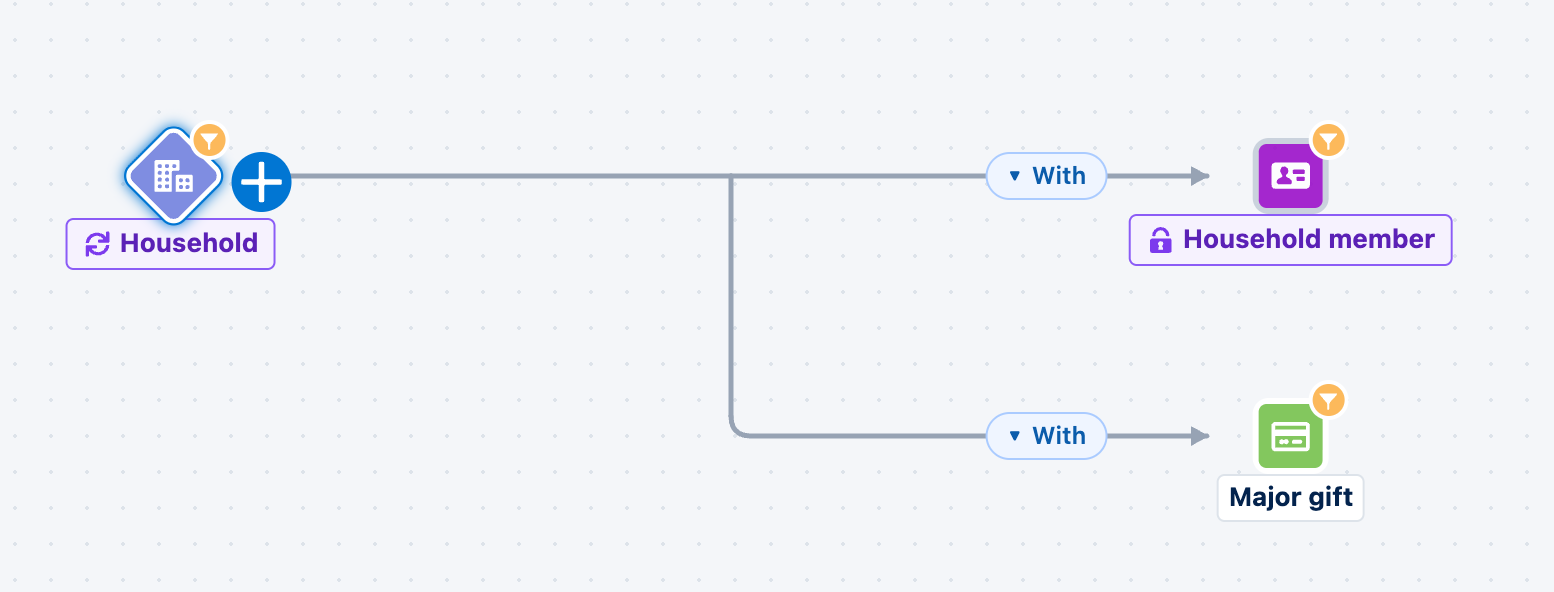
In the filter editor:
- A synced entry appears as Synced with the entry name and a Detach button. Its conditions are read-only. Detach copies the entry’s current conditions into your filter as editable conditions and removes the live link.
- A locked entry appears with the note These filters are enforced by your admin and always apply. You cannot edit or detach it. Only an administrator can release it.
- When a locked chain applies, its related objects are grouped behind a chip such as 2 governed objects. Use Show or hide governed objects to see them.
Your own conditions on the same filter stay editable. CAB applies them together with the synced and locked entries.
Let Cabby use the library
Section titled “Let Cabby use the library”When you build an audience with Cabby, Cabby can search the library and use an entry as it is saved. It does not rebuild the entry’s conditions.
- A fixed entry follows the normal Cabby review: Configuration Ready, Preview, Apply.
- Cabby asks before it adds a synced reference. Under Apply suggested filter library templates?, select which entries to use, then select Sync & apply or Apply without sync.
- For a configurable entry, Cabby proposes Configure & copy and can fill in values you stated in the chat. You still review every value in the dialog above.
- Locked entries appear as Automatically enforced: …. They need no confirmation.
Cabby never makes an entry a default, changes how an entry applies, or detaches a reference. See Build and activate audiences with Cabby.