
Act on results
Stop asking people who already said yes, and follow up with the ones who haven’t
CAB knows who gave after being added and who didn’t. Use that in your next audience: leave out households that already gave after the Spring appeal 2026, or send a reminder to everyone the appeal reached who hasn’t given. CAB adds this to your audience as an outcome filter. The filter is checked again on every run, so the audience stays current without exports.
Two words matter on this page. Completed means someone has done what the outcome counts, such as giving a gift, at any time, whether CAB added them or not. Converted means they did it within the outcome’s window after CAB added them, for example within 30 days. Only converted people count toward the outcome’s rate.
Use an outcome in an audience
Section titled “Use an outcome in an audience”- On the outcome’s page, select Use in audience.
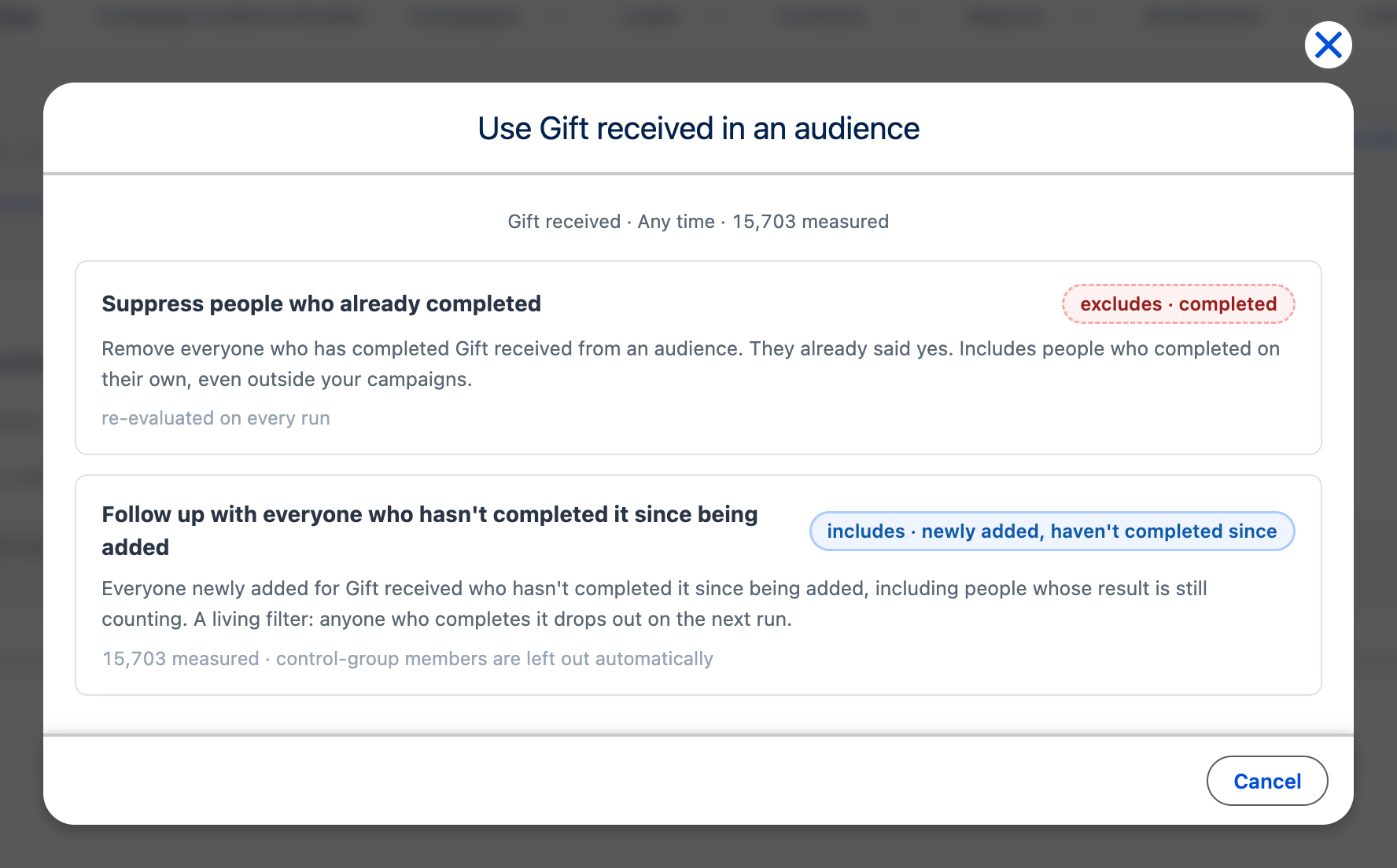
- Choose what you want. The top line says how many people CAB measured for the outcome, for example Gift received · Any time · 15,703 added so far. This counts everyone CAB still keeps a list of, including people whose window is still open, so it can be higher than the count behind the overall rate on the outcome’s page.
- Leave out people who already completed it leaves out everyone who has completed the outcome, here everyone who ever gave. It checks your Salesforce records, so it also finds people who gave on their own, outside your campaigns.
- Follow up with everyone who hasn’t completed it since being added keeps only the people on the follow-up list: everyone an action newly added in the period shown at the top who hasn’t completed the outcome since, including people whose result is still counting. Anyone who completes it drops out from the next run. Completing it before being added doesn’t keep anyone off the list. People in a control group are left out automatically, so the comparison stays intact.
- Under Where should this filter go?, choose Start a new audience or Add to an existing audience and pick the audience. Only audiences of the kind of record the outcome counts are listed: for an outcome counted per household, Account audiences. See Households, contacts and leads.
- Select Open in builder. CAB adds the outcome filter to the audience’s first step and opens it. Review the audience before you run or schedule it.
The follow-up list only looks at what happened after each person was added. If someone was added more than once in the period, their latest add counts: a household added in January and again in June that gave in February is on the list, because its latest add was in June and it hasn’t given since. For an audience of past donors, such as “Lapsed donors, 12–24 months”, everyone who hasn’t given since being added is on the list, even though they all gave at some point before.
To also leave out people who gave before they were added, add a second outcome filter to the audience’s first step (see below): Leave out people who completed it, with How far back? set to Any time, or to a shorter period, such as Last 90 days, to leave out only recent donors. This filter checks your records for every gift, whenever it was made. Combine the first step’s filters with AND, so both apply.
The follow-up option needs people CAB measured. When nobody has been measured yet, or the lists of measured people are no longer kept, CAB says so and the option is not available. Your administrator decides how long CAB keeps them.
To time a follow-up, look at When people give on the outcome’s page. If most gifts arrive within two weeks, schedule the follow-up audience to run about 15 days after the appeal. See When people convert.
Filter an audience by an outcome
Section titled “Filter an audience by an outcome”You can also add an outcome filter yourself, to any audience:
On the audience’s first step, select + and choose Outcome filter under Filter type.
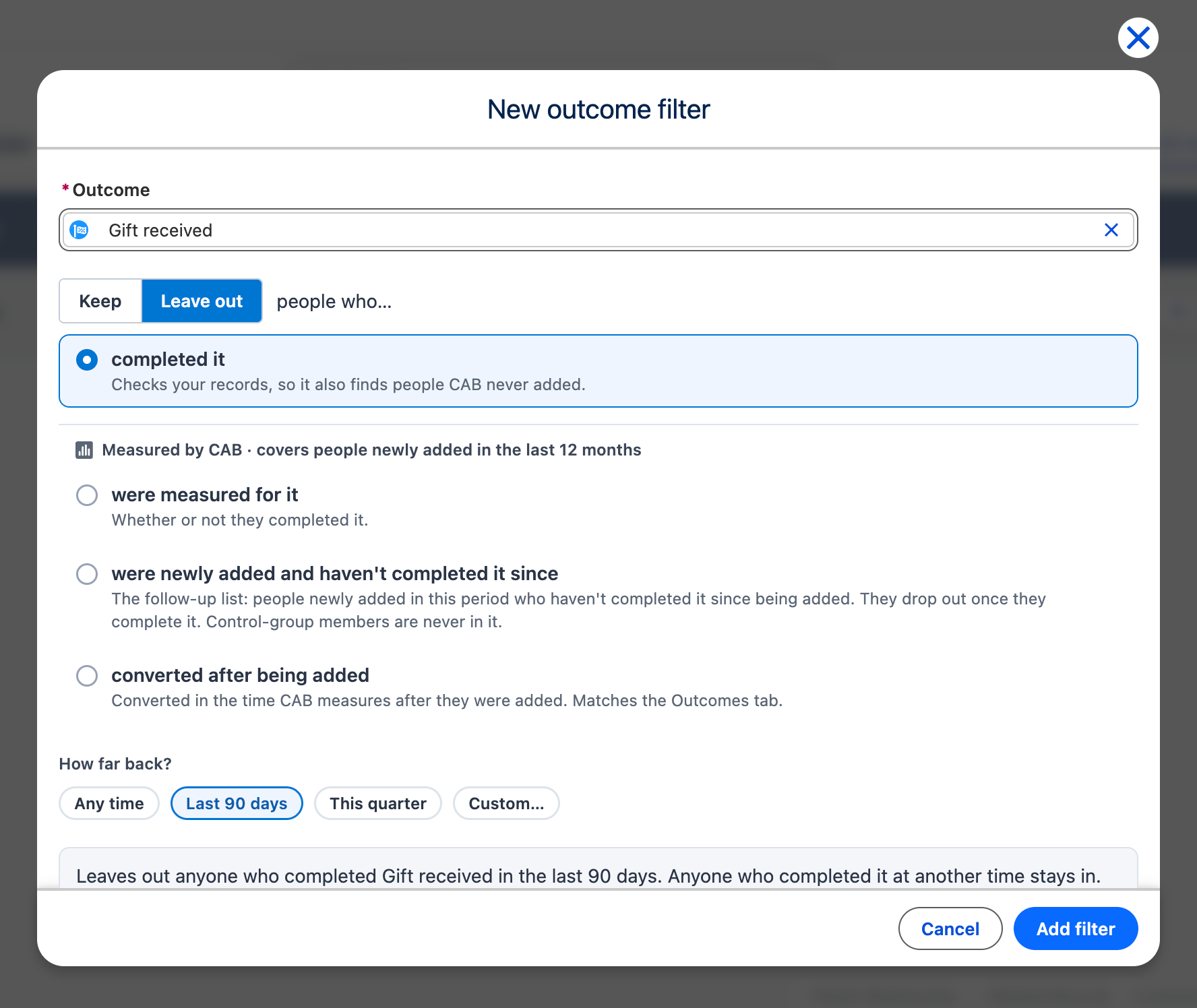
Under Outcome, pick the outcome. Outcomes CAB has already measured show Measured by CAB.
Choose Keep or Leave out, then which people who…:
Option Who How far back? counts from Based on completed it Everyone whose records meet the outcome’s rule, whether CAB added them or not. Example: everyone who gave. When they completed it Your Salesforce records were measured for it Everyone CAB newly added and measured for the outcome, whether or not they gave. When they were added Measured by CAB were newly added and haven’t completed it since The follow-up list, the same as Follow up with everyone who hasn’t completed it since being added: people an action newly added in the period who haven’t completed the outcome since their latest add. They drop out from the next run once they complete it. Completing it before being added doesn’t count. Control-group members are never in it. When they were added Measured by CAB gave after being added (on a custom outcome: converted after being added) People CAB measured who gave within the outcome’s window after being added, as the CAB Outcomes tab counts them. It also includes people whose window is still open and who gave by the latest update. When they were added Measured by CAB Under How far back?, choose Any time, Last 90 days, This quarter or Custom….
Read the sentence at the bottom, for example Leaves out anyone who completed Gift received in the last 90 days. Anyone who completed it at another time stays in., then select Add filter.
On the canvas, the filter’s card shows the outcome, which people it selects, the period and how many people it draws from, for example from 15,703 newly added by 12 campaign adds. Someone added by two campaign adds counts twice, once for each.
Good to know
Section titled “Good to know”- The first step only. An outcome filter applies to the whole audience, so it sits on the audience’s first step, not under a related object.
- Runs in the background. An audience with a filter based on Measured by CAB is built in the background, and you get a notification when the results are ready.
- How far back CAB can look. The options based on Measured by CAB only cover people CAB still keeps. The filter shows how far back that is, for example covers people newly added in the last 12 months, and warns when your period starts earlier.
- OR conditions. If the first step combines its filters with OR, an outcome filter there can only keep measured people. To leave people out with an outcome filter, combine the first step’s filters with AND.
See an audience’s outcomes while you build
Section titled “See an audience’s outcomes while you build”Before you decide what to change, open the audience’s Details to see which outcomes measure it, and open each one to see how the audience compares with the others. Read more in See an audience’s outcomes.