Grant Login Access
Introduction
Section titled “Introduction”To help us troubleshoot bugs or to support you hands-on, you can manually grant us access to those support scenarios.
Setup Steps
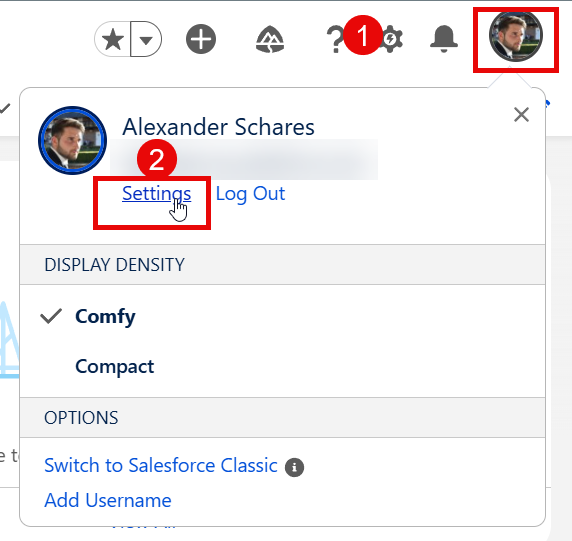
Section titled “Setup Steps”- To do so, click your user avatar > and then Settings
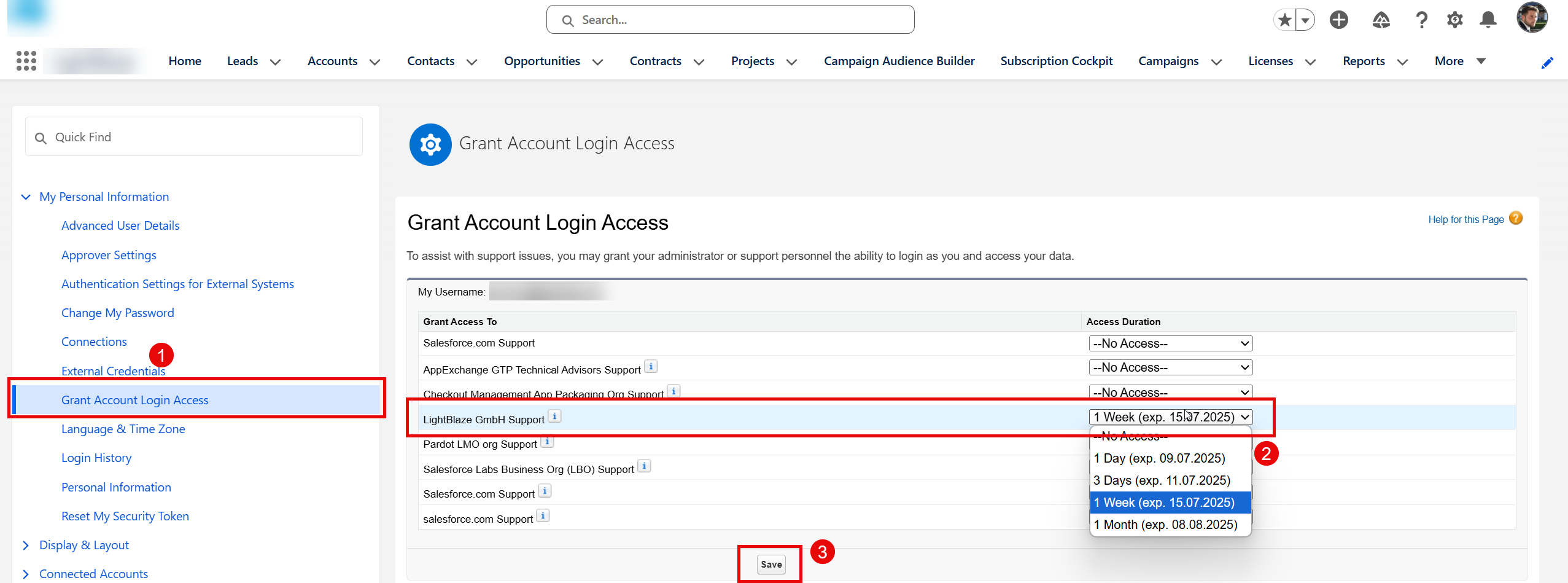
- Then access the Grant Account Login Access sub-menu
- For LightBlaze GmbH Support, you have to enter an Access Duration (1 Day, 3 Days, 1 Week, 1 Month)
- Finish the Setup by clicking Save.
Data Protection Disclosure
Section titled “Data Protection Disclosure”Note
Data Protection Disclosure
We’re granted access to log in as the user who did the setup step for the given access duration. We will never access any Salesforce record besides the app-related records that help us troubleshoot or support the raised case. This Grant Account Login Access feature is the only scenario we get in touch with your Salesforce data. We can start with a screen-sharing session if you want to avoid granting access. For technical bugs, it’s better to give access because we can access more error details.