

Read and sort the audience list
The audience list shows one row per audience, in Categories and in Folders, with these columns:
- Name — the audience name, with its description in gray after it. When the column is too narrow, the description is cut off first.
- Type — Standard, Combination, or Waterfall. The column appears when audience sequences are available.
- Folder — the folder that holds the audience. Inside a folder, this column is not shown.
- Created By — the creator and the day the audience was created.
- Last Run — Today or Yesterday with the time for recent runs, the day and time for earlier runs this year, and the day with the year for older runs.
- Last Results — how many results the last run returned.
- Status — the schedule, the state of the last run, and large result changes. See Read the Status column.
Hover over a value in Created By or Last Run to see the full date and time.
Read the Status column
Section titled “Read the Status column”The Status column shows each audience’s schedule and anything about its runs that needs your attention. An empty cell means there is nothing to report. Icons always appear in the same order, and only the icons that apply are shown. Hover over an icon to see what it means.
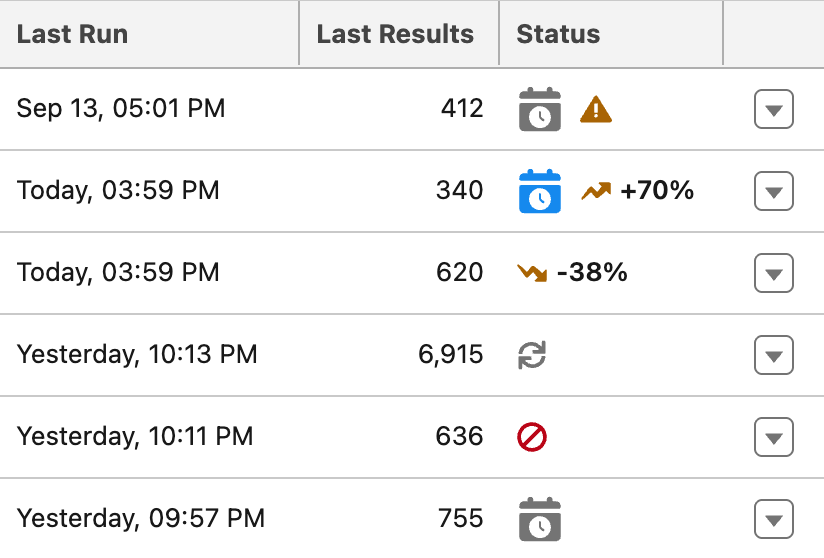
- Schedule. A blue calendar icon means a recurring schedule is running (This audience schedule is active). A gray calendar icon means a schedule is planned but not active yet (This audience schedule is planned). When change approval blocks the schedule, a warning icon appears instead; see Review large membership changes before actions run.
- Last run. At most one icon: Running while a run is in progress, Failed when the latest run failed, or a warning when there was No successful run in the last 30 days. A running run is shown before a failure, and a failure before the 30-day warning.
- Size change. An arrow and the percentage by which the result count rose or fell between the last two completed runs. It appears only when the count changed by at least 10% and at least 50 results. Hover over it to see the counts, for example 1,200 fewer results than the previous run (5,000 → 3,800). To follow the size over many runs, see See audience size and membership change over time.
Sort and resize the list
Section titled “Sort and resize the list”- Click a column header to sort by that column. Click it again to switch between ascending and descending order.
- You can sort by Name, Type, Folder, Created By (by the creation date), Last Run, and Last Results.
- The list keeps your last sort order the next time you open it in the same browser.
- You can resize each column by clicking and dragging the column header border.