

Review large membership changes before actions run
Govern activation
A scheduled run can now alert an approver—or pause all of its scheduled actions—when total churn (joiners plus leavers) crosses the schedule’s thresholds.
Scheduled runs · In-app decisions · Org defaults & lock
Configure a schedule
Section titled “Configure a schedule”- In the scheduling wizard, open Change approval and turn on Enable change approval.
- For When the threshold is exceeded, choose Notify only — alert the approver, scheduled actions still run or Require approval — hold scheduled actions until an approver decides.
- Set Change threshold (% of previous size) and Minimum change (members). Both configured thresholds must be met.
- Under Who approves, choose Specific User, Audience Owner, or Scheduling User.
- Optionally turn on Auto-reject if no decision, then set After (hours). An expired approval is always rejected — CAB never releases actions without a decision.
Make a decision
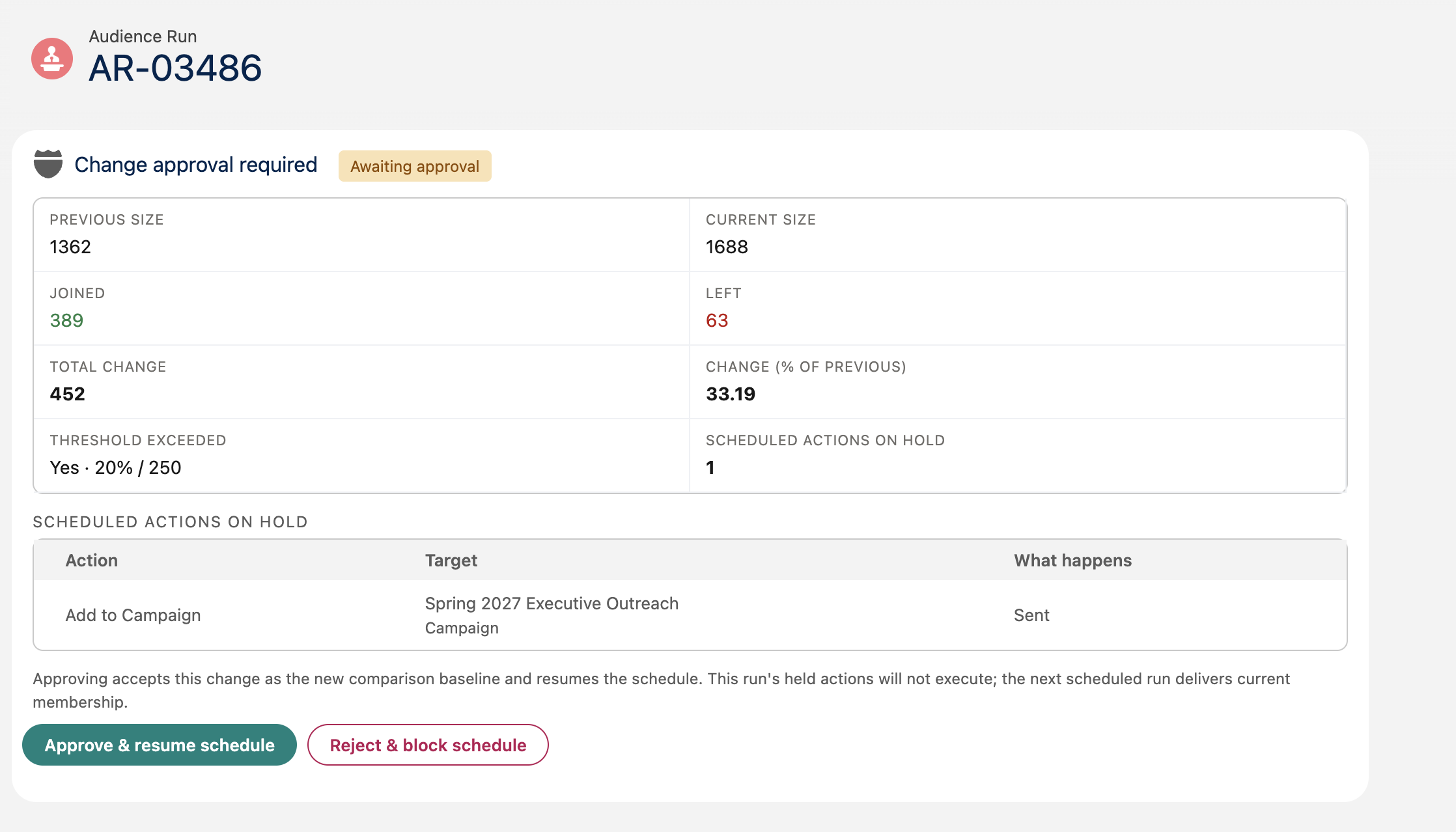
Section titled “Make a decision”A held run appears as Change approval required with status Awaiting approval. Review the previous and current sizes, joiners, leavers, churn, and held actions. Use View joined members and View left members for deeper inspection.
Select Approve & resume schedule to accept the change and let the schedule continue, or Reject & block schedule and optionally enter Reason (optional). You can return from the notification card or the run history link Open decision.
Approving accepts the reviewed change as the new comparison baseline and resumes the schedule. The held run’s actions never execute — the next scheduled run delivers current membership, compared against the change you just accepted. If the audience was on a one-time schedule, that schedule is re-armed so the audience still delivers; the re-armed run is evaluated by the same guard, so a further unexpected change pauses it again.
Rejecting discards the held run and blocks the audience’s scheduled execution until an authorized user resumes it (see below). The comparison baseline does not advance, so an unfixed cause triggers the guard again on the next run after resuming. A configured expiry creates the same block.
While a run is waiting
Section titled “While a run is waiting”- Its scheduled actions do not run — and they never will; approval affects future runs only.
- Later scheduled runs for the same audience version are paused until the decision.
- The membership snapshot is retained for review and as the comparison baseline.
- The schedule resumes after approval, or after rejection once an authorized user unblocks it. A configured expiry auto-rejects.
Resume after a rejection
Section titled “Resume after a rejection”After a rejection, CAB replaces the normal schedule icon with a warning icon in the audience table and on the canvas and results action bars. For a scheduled sequence, the warning also appears in the sequence header.
The schedule remains configured: CAB pauses its execution rather than unscheduling it.
The assigned approver or a CAB administrator can use either recovery route:
- Select the warning action Resume scheduled audience.
- Open Manage Schedule, then select Resume scheduled audience in the blocked-schedule warning.
Review Resume scheduled audience? and confirm.
Other users can see the blocked state on the schedule icon and in Manage Schedule, but cannot use either route to resume the schedule.
Resuming does not approve or replay the rejected run. Its remaining actions stay discarded, and the next due run recalculates the audience from fresh data. The next membership comparison uses the last accepted scheduled generation rather than the rejected generation, so CAB can request approval again when the anomaly is still present.