

Reuse and govern filters with the Filter Library
Build consistently
Save proven filters once, then reuse them as fixed or configured copies, synced references, or enforced policies. Library entries can cover one object, a connected-object chain, or an aggregate qualification that calculates across related records. Cabby can find relevant entries or help author a new one.
Audience building · Cabby · Admin controls
Create a library entry
Section titled “Create a library entry”- Open the CAB Filter Library tab and select New Library Entry.
- On Details, enter the Name and Description, then choose the object.
- On Filters & Options, choose Single object or Connected objects (chain). For chains, use Add related object and Combine related objects.
- Add any ordinary conditions you need. The starting object can remain unfiltered when the aggregate path itself defines a complete qualification. To add an aggregate qualification from the root or another eligible ordinary object, select New Aggregate Filter. Under Set Aggregation Level, choose one or more related-object levels, add source conditions at any level, and end the path with one calculation comparison using Aggregate Function, Field when it is shown, Operator, and Value.
- To make a complete ordinary condition value or aggregate comparison value configurable, select Make parameter, enter a Parameter label and, if needed, Instructions (optional), then select Save parameter.
- Select Use compatible parameter to reuse the same value in another compatible ordinary condition or aggregate comparison, including on another node in the chain. Use Edit parameter to change its label or instructions everywhere it is reused, or Replace with fixed value to return one use to a normal value. Parameters (N) shows every parameter, its usage count, and where it appears in the entry.
- Save the entry. Fixed entries retain the live matching-record count. For an aggregate module, CAB counts the complete relationship path, source conditions, and calculation rather than using a flat object count. While authoring, a parameterized entry shows Record count is unavailable until parameter values are provided. Its saved table row shows no count. CAB does not calculate a module-specific count in the library or the Configure & copy view. The normal library count returns after the final parameter is replaced with a complete fixed value. After a configured copy is added to the audience, normal audience count behavior applies.
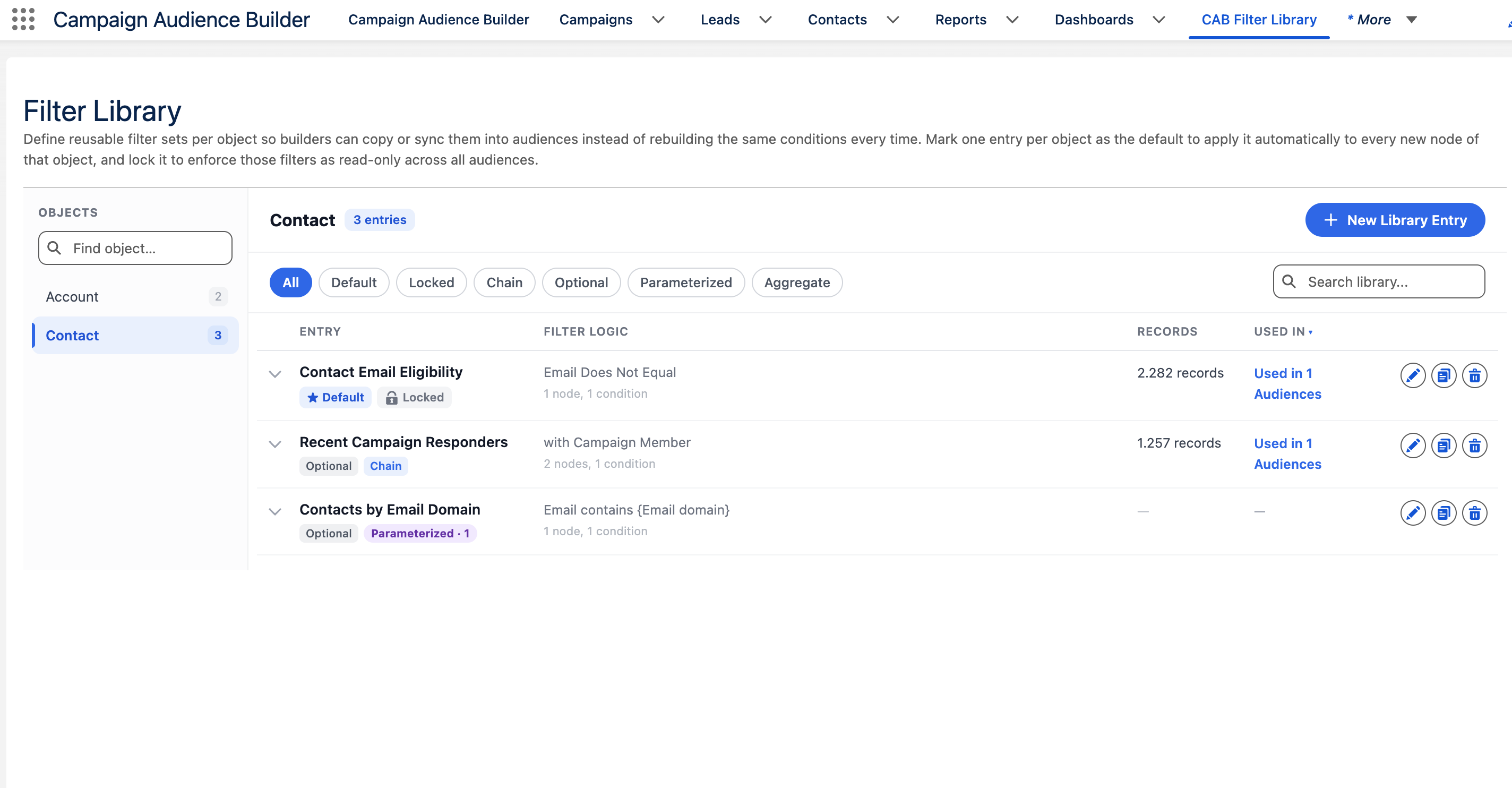
Aggregate rows add an Aggregate badge and can be found with the Aggregate facet. Parameterized rows keep their Optional and Chain badges where applicable and add Parameterized · N; use the Parameterized facet to find them. Search includes the entry description, aggregate function and field, source objects, and parameter labels and instructions. Paths and expanded previews distinguish aggregate levels, show their source conditions, and summarize the calculation as COUNT(*) or FUNCTION(field).
Apply an entry while building
Section titled “Apply an entry while building”In an audience filter editor, open Copy Existing Filter. The available action depends on the entry:
| Choice | What happens |
|---|---|
| Copy | A fixed entry—including a fixed aggregate module—is copied into the audience and can be edited independently. |
| Configure & copy | A parameterized module, including one with aggregate operands, opens a second view in the same window. Provide every required value, then select Copy to audience. CAB adds editable filters or the complete relationship path and aggregate calculation with no live Filter Library connection. |
| Sync | A fixed entry keeps a live reference. Library changes flow through until a builder chooses Detach. |
Fixed aggregate cards offer Copy and Sync according to the entry’s policy. Parameterized cards show N values required and offer only Configure & copy. Back keeps values entered during the current session. Cancel closes the workflow without changing the audience. If the module changed while it was open, select Reload module and review the current parameters.
You can also promote an audience filter from its editor with Save to library, then choose This node only or This node and everything below it. To promote an aggregate qualification, start from the ordinary object where its aggregate path begins and include everything below it.
Use Cabby with the library
Section titled “Use Cabby with the library”During audience chat, Cabby can search the library and use an existing module without rebuilding its conditions, relationship path, or aggregate calculation. A fixed Copy follows the normal Configuration Ready, Preview, and Apply flow. A new synced reference remains explicit: Cabby presents Apply suggested filter library templates?; toggle the proposed template chips, then select Sync & apply or Apply without sync. Locked policies appear as Automatically enforced: … and do not need confirmation.
When Cabby finds a parameterized module—including a parameterized aggregate module—it proposes a one-time Configure & copy instead of a synced reference. Values you stated explicitly can be prefilled. CAB still opens the native configuration view for you to review every required value before the module is copied. Canceling skips that module without applying it, and Cabby never rebuilds the module’s conditions, relationship path, or aggregate calculation. Cabby also never makes an entry a default, changes its designation, or detaches an existing reference.
To let Cabby build an entry, open a new or existing entry, continue to Filters & Options, and select the visible Agent button. The sidebar is titled Cabby; enter a request in Describe the filter you want…. Cabby can draft an aggregate relationship path and source conditions, make an ordinary or aggregate value configurable, or reuse a compatible parameter across the entry. Changes apply to the draft with Undo and Redo, but nothing is persisted until you save the entry.
What to expect
Section titled “What to expect”- Multiple library references on one node are combined with AND.
- Governed connected-object branches start collapsed behind a N governed objects chip; use Show or hide governed objects to inspect them.
- Cabby preserves locked filters and asks before adding a synced reference.
- A configured copy is independent. Editing or deleting the source module does not change an existing audience copy.
- Parameter inputs use the same typed controls as ordinary conditions: text, email, phone, URL, and text area; integer, decimal, currency, percent, and Boolean values; date, date/time, time, relative dates, and number or date ranges; picklist and multi-select picklist; lookup and ID, including several records where the normal editor supports them; and complete Location, radius, and unit values. See Choose the right filter operator.
- Changing the entry’s object or copying another filter prompts before replacing its conditions, chain, and parameter definitions. Cancel preserves the existing module.
- An aggregate qualification follows one linear related-object path, can narrow records with ordinary source conditions at any level, and ends with one calculation comparison.
Manage entries that are already in use
Section titled “Manage entries that are already in use”The Used in column distinguishes Not used yet from Used in … Audiences. Select the usage link to open Audiences using …, see whether each reference is Locked or Synced, and open the audience.
- Use Duplicate Library Entry to start a new entry from an existing definition. The duplicate receives a copy-suffixed name and does not inherit the original entry’s default or governance designation.
- Before an edit, CAB states how many audience nodes are locked or synced. Saving changes those audiences’ future results.
- Detach all synced audiences copies the entry’s current conditions into every synced audience as editable conditions, then removes the live references. Locked references are not detached by this action.
- Deleting an entry requires confirmation and is blocked while locked or synced references remain. Release the locked policy and detach its synced audiences first; then check Used in again before deleting.