

1
Enter Marketing Cloud Integration Credentials
Enter integration credentials of the Marketing Cloud App to be used for the integration with Campaign Audience Builder.
After these steps, the users you choose can add audiences to Marketing Cloud data extensions.
Before you begin
In Marketing Cloud, select your avatar → Setup, then Platform Tools → Apps → Installed Packages → New.
Enter a name, for example “CAB - Marketing Cloud Integration”, and select Save.
Select Add Component, keep API Integration, then choose Server-to-Server.
Give the scopes Data Extensions (Read, Write) under Data and Accounts (Read, Write) under Provisioning, then select Save.
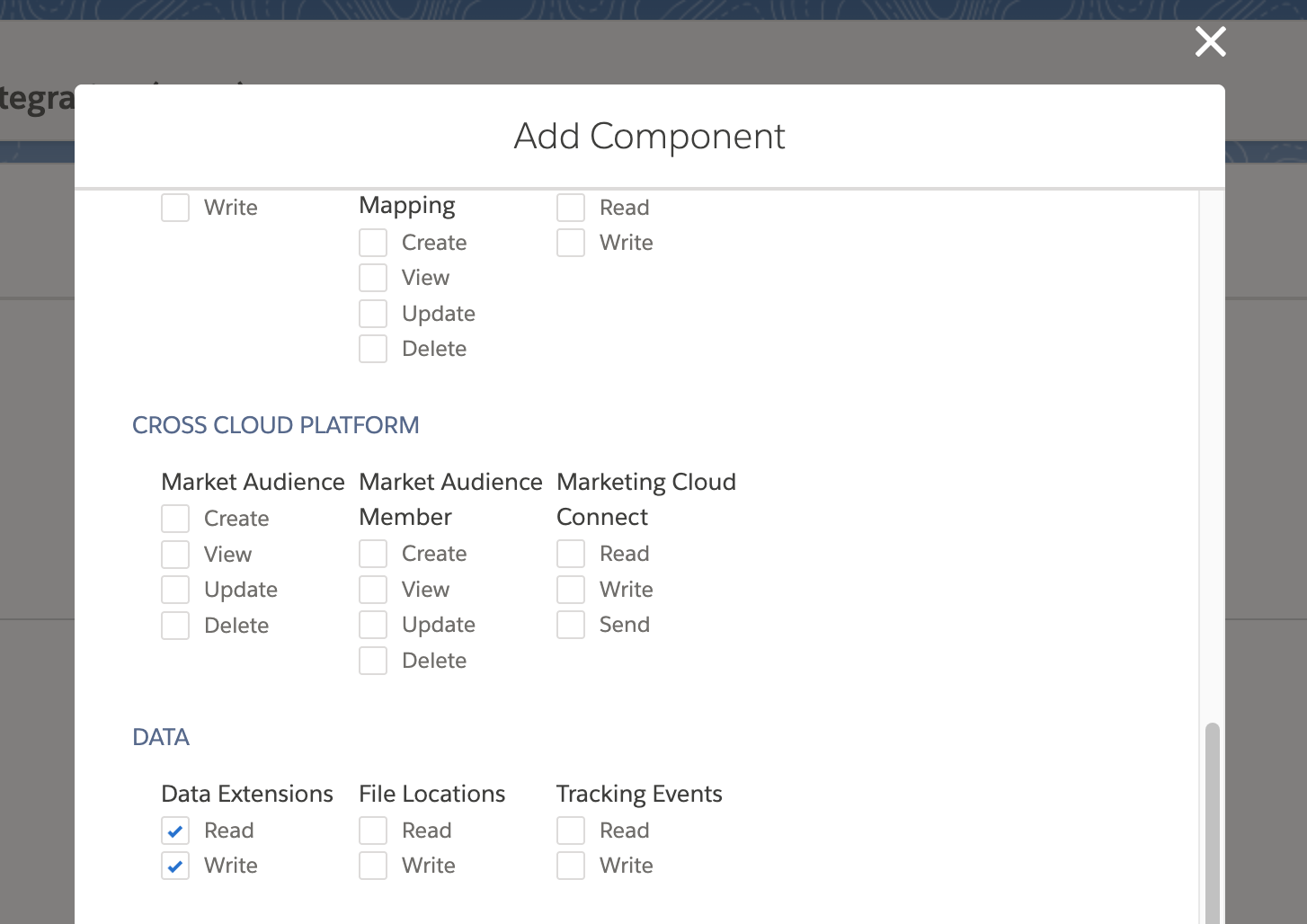
To use more business units than the main one, open Access and turn on the integration for them, or select Enable All Business Units.
Copy the Client Id, the Client Secret and the authentication, REST and SOAP base URIs of the component.
In Salesforce Setup → Remote Site Settings, create three remote sites with New Remote Site, each active:
| Remote Site Name | Remote Site URL |
|---|---|
| CAB_MarketingCloudAuth | The authentication base URI |
| CAB_MarketingCloudREST | The REST base URI |
| CAB_MarketingCloudSOAP | The SOAP base URI |
Open CAB Settings → Configure → AI & Integrations → Marketing Cloud Integration.
On Enter Marketing Cloud Integration Credentials, select Edit. Enter Client Id, Client Secret, Client secret expiry date and Authentication Base URL, then select Save. The secret expires 180 days after it was created; CAB reminds you before.
On Assign Integration Permission Set, select Select Users and choose the users who work with the integration. Only users with CAB access appear. They get Campaign Audience Builder - Marketing Cloud Integration.
On Set Default Integration Variables, select Edit, choose Default Business Unit and Default Folder, and select Save. Use the top-level business unit as the default; the Marketing Cloud API has limits when working across business units. New data extensions start with these values.
All steps on Marketing Cloud Integration are done, and a user from step 3 can create a data extension from an audience’s results.