

Grant login access to support
After these steps, the support team can sign in as you until the access ends.
For a technical problem, login access helps the support team most, because it shows error details that a screen-sharing session doesn’t. If you prefer not to grant access, ask for a screen-sharing session first.
-
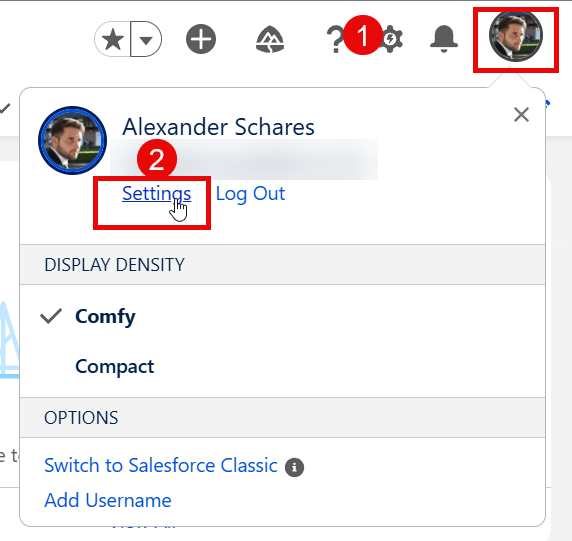
Select your user avatar, then Settings.
-
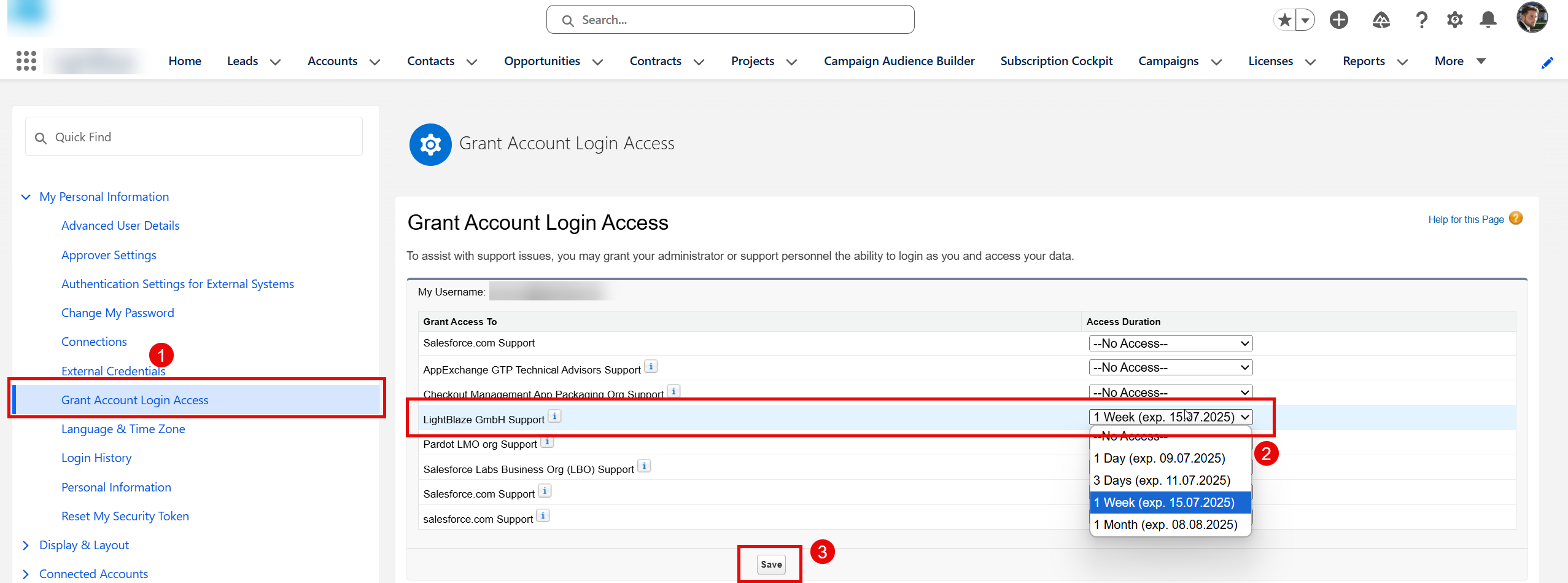
Open Grant Account Login Access.
-
For LightBlaze GmbH Support, choose an access duration: 1 day, 3 days, 1 week or 1 month.
-
Select Save.
Check the result
Section titled “Check the result”Grant Account Login Access shows the date until which access is granted. The access ends by itself at that date.